
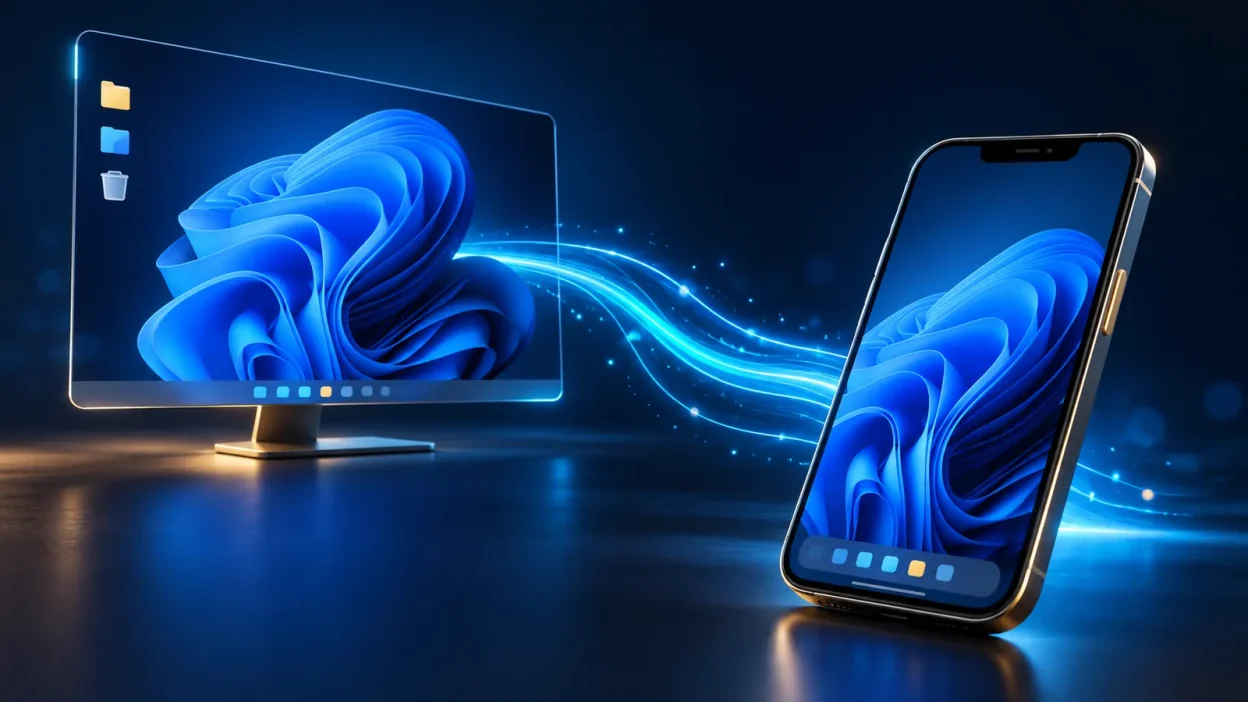
Remote desktop from phone lets you open and control a Windows computer from an Android phone or iPhone when you are away from your desk. Microsoft’s current Windows App supports direct remote-PC connections on both mobile platforms, so you only need the app, your server details, and a stable internet connection.
What you need before connecting
You need these details before opening the mobile app:
- The RDP server’s public IP address or hostname.
- The Windows username and password for the remote computer.
- A reliable Wi-Fi or mobile-data connection.
- An Android phone running Android 10 or later, or an iPhone running a supported iOS version. Microsoft lists Android 10+ and iOS/iPadOS 16+ for Windows App remote-PC connections in its current requirements.
For a VPS, the IP address and administrator credentials are normally in your provider’s welcome email or client area. If you are using a VPSLake Windows RDP, choose the Buffalo server details from the client area and keep the password private. You do not need to sign in to Windows App with a personal Microsoft account to add a remote PC.
If you need the desktop connection explained from the beginning, see how to connect to a Windows VPS using RDP.
Step 1: Install the official mobile app
The official client gives you a direct RDP connection without installing a separate control program on the Windows machine.
- On Android, open Google Play and search for Windows App by Microsoft. On iPhone, open the Apple App Store and search for Windows App by Microsoft.
- Install the app, then open it.
- Skip or complete the first-run tour.
- Allow Bluetooth or local-network access on iPhone only if you want to use those local-device features. These permissions are separate from internet access to your VPS.
Microsoft’s Windows App connection documentation is the best place to check if the app labels change after an update.
Success looks like: Windows App opens to a screen where you can add a PC or create a new connection.
Step 2: Add your RDP on Android
Android’s setup takes only a few fields: the remote PC address, an optional label, and your Windows login.
- Open Windows App and tap the + button, if a new-connection prompt does not appear automatically.
- Tap PC connection.
- Tap PC Name and enter the RDP IP address or hostname. Enter only the address unless your provider specifically gave you a custom port.
- Add a friendly name such as “Work RDP” if you manage more than one server.
- Add the Windows username now, or wait for the login prompt after saving.
- Leave device and audio redirection disabled unless you have a specific reason to use a local phone resource.
- Tap Save, then tap the new PC card.
- Enter the Windows password. Review the trust prompt and tap Connect only when the address is the server you intended to open.
Success looks like: your Windows desktop appears in the app, with a small command bar or controls available for changing input mode and ending the session.
Android connection example
If your provider gives you an address such as 203.0.113.25, enter that value in PC Name. Use the Windows account supplied for the RDP, not your Google account and not your phone unlock PIN.
Do not publish your IP address, username, or password in a screenshot or support post. If a password has been exposed, change it from the server or client area before using the connection again.
Step 3: Add your RDP on iPhone
The iPhone flow is nearly the same, but the connection type is explicitly called PC.
- Open Windows App. Tap + from any tab, or follow the prompt to add a connection.
- Tap PC.
- Tap PC Name and enter the RDP IP address or hostname.
- Add a friendly name and the Windows username if you want the app to remember them.
- Keep local device and audio redirection off unless you understand exactly what you are allowing.
- Tap Save.
- From the Devices tab, tap the new PC, enter the Windows password, and confirm the trust prompt for the correct server.
Success looks like: the remote Windows desktop opens and taps are being sent to the server rather than opening controls on the iPhone itself.
The iPhone keyboard is useful for short commands, passwords, and quick checks. For longer work, pair a Bluetooth keyboard where supported or use a larger tablet. You can still use the phone alone for checking an application, restarting a task, or reading a notification.
Step 4: Choose touch mode or mouse-pointer mode
The right input mode makes a much bigger difference on a phone than on a laptop. Windows App provides two modes for a remote session, as described in Microsoft’s touch and mouse guidance.
| Mode | How it works | Best for |
|---|---|---|
| Direct touch | Your tap acts at the position you touch; no pointer is shown. | Large buttons, scrolling, and simple checks |
| Mouse pointer | You move a visible cursor with your finger, then tap to click. | Small controls, desktop menus, and precise selections |
Use Direct touch when you are opening a large button or scrolling through a page. Switch to Mouse pointer when a Windows dialog, chart, or application has small controls that are difficult to hit directly.
Useful gestures include:
- One-finger tap: left click.
- Tap and hold: right click in direct-touch mode.
- Two-finger tap or tap and hold: right click in pointer mode.
- Double-tap, hold, and drag: drag an item.
- Two-finger hold and drag: scroll in pointer mode.
- Pinch or spread: zoom the local view where the app supports it.
For Windows security actions, the mobile equivalent of Ctrl + Alt + Delete is commonly Ctrl + Alt + End in Windows App. A compact Bluetooth keyboard makes keyboard-heavy work easier, but you can usually complete a quick check with the on-screen keyboard and touch controls.
Step 5: Use mobile data without wasting it
There is no single “RDP data per hour” number. Microsoft explains that traffic changes with user activity, screen resolution, frame rate, and the amount of the screen that changes. A quiet desktop uses little data; image-heavy browsing and fast-changing screens use more.
| What you are doing | Expected data pattern | Practical phone tip |
|---|---|---|
| Checking whether an app is open | Low while the screen is mostly still | Connect briefly, check the status, then disconnect |
| Reading text or typing | Low to moderate | Use Wi-Fi when available and avoid unnecessary screen scaling |
| Scrolling image-heavy pages | Moderate to high | Lower the display quality or resolution if the app offers the setting |
| Watching fast-moving content | High and inefficient for a phone session | Avoid using RDP as a media player |
Your RDP server’s traffic allowance is separate from the data plan on your phone. The phone uses data to send your taps and receive the changed parts of the remote screen; applications running on the server use the server’s own network connection.
For a quick MT4 or MT5 check, avoid leaving the session open while the phone is in your pocket. Open the terminal, inspect the chart or account status, review the Experts or Journal tab, and disconnect when finished. If you want to choose resources for a trading terminal, see MT4 and MT5 VPS requirements.
Verify the session after you connect
Before relying on phone access, test the tasks you will actually perform:
- Open the main application you need, such as an MT4 terminal or a work browser.
- Switch between direct touch and mouse pointer mode.
- Type a short, harmless word into a blank field and delete it.
- Open the Windows Start menu and close it again.
- Lock your phone briefly, unlock it, and confirm that the session can be resumed.
- Disconnect from the app, then reconnect and confirm that the remote application is still in the expected state.
Keep the Windows session locked when you finish sensitive work. Disconnecting the phone app is not the same as signing out of Windows, so check the remote desktop before handing your phone to someone else.
Troubleshoot remote desktop from phone problems
The app cannot connect. Recheck the IP address, username, and password. Confirm that the server is powered on and that your network allows the connection. If you changed the RDP port, include it in the address in the format your provider gave you.
The desktop is black or slow. Move to a stronger network, reduce the display resolution, and close graphic-heavy applications on the remote machine. RDP sends changed screen content, so a busy or image-heavy desktop needs more bandwidth than a still one.
Taps land in the wrong place. Switch from direct touch to mouse pointer mode. Zoom the local view, rotate the phone to landscape, or use a Bluetooth mouse or keyboard for precise work.
The keyboard types the wrong characters. Check the keyboard language on the remote Windows session and try the on-screen keyboard. For shortcuts that involve Windows security, use the app’s command bar rather than expecting the phone’s volume or navigation buttons to behave like PC keys.
You see a certificate warning. Stop and verify the IP address or hostname with your provider before accepting it. Never approve an unexpected certificate just to make the connection open.
FAQ
Can I use remote desktop from phone without a computer nearby?
Yes. Your phone is the client; the Windows computer can be a VPS or another always-on PC in a data center. You need its network address and a Windows account that is allowed to connect.
Is Android or iPhone better for RDP?
Both can connect to a Windows PC through Windows App. The better choice is the phone you already use and the network that is more stable; the touch gestures and basic connection flow are similar.
Can I run MT4 or an EA from an iPhone?
The iPhone does not run the Windows terminal as a native iOS app. It connects to the Windows machine, where MT4 and its EA can already be running, so you can inspect the terminal and make permitted changes from the remote desktop.
Does remote desktop from phone use a lot of data?
It depends on what changes on the remote screen. Idle and text-based work generally use less data than image-heavy browsing or fast animation, so use Wi-Fi where possible and disconnect after a quick check.
Can I copy and paste between my phone and the RDP?
Clipboard behavior depends on the app version and the redirection settings allowed for the connection. Test it with non-sensitive text first, and do not copy passwords or private keys into a shared clipboard.
DONE remote-desktop-from-phone-android-iphone words=1756