
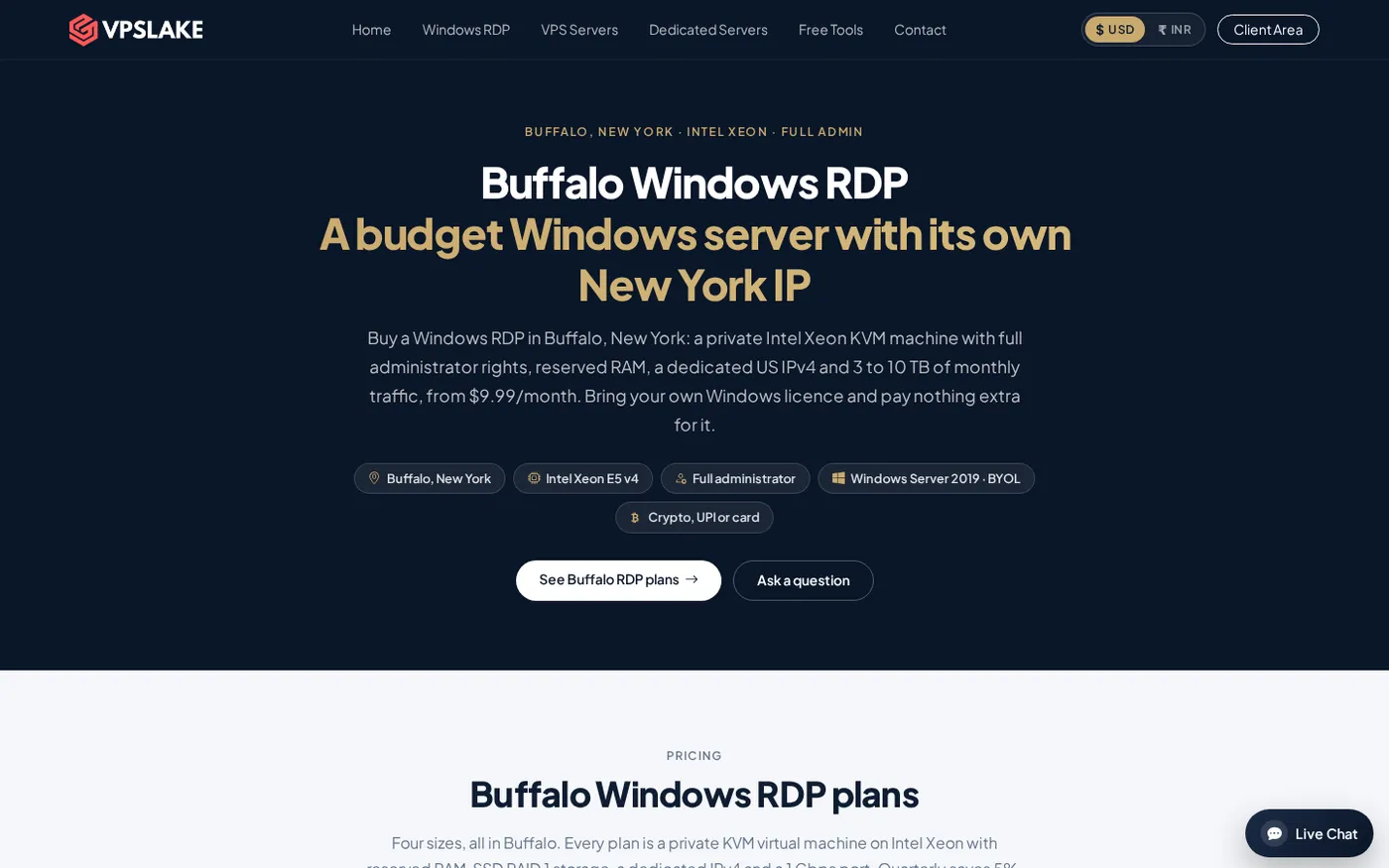
The best RDP for Philippines users is a private US Windows desktop when your work involves US clients, platforms, or search results. VPSLake’s Buffalo Windows RDP starts at $9.99/mo, accepts card and crypto payments, and gives you full Administrator access on a private KVM VM with a dedicated US IPv4.
Who in the Philippines buys an RDP?
An RDP is a Windows computer hosted in a data centre that you control through Remote Desktop. You can use it from a Filipino laptop, desktop, tablet, or phone while the applications and files remain on the remote machine.
Typical buyers include:
- Filipino virtual assistants and freelancers who need a consistent US workspace for a client.
- Agencies that manage permitted US-facing work and want one fixed datacenter IP for their own accounts.
- Search raters and remote workers who need a separate Windows desktop for work tools.
- MT4 or MT5 traders who want a Windows machine that stays available when their local computer is offline.
- Developers and small teams running Windows-only applications or browser-based business tools.
An RDP does not make an account compliant with a platform’s rules or guarantee approval for advertising, marketplaces, or financial services. Use it for legitimate work, follow each service’s terms, and keep your login details private.
Why a US server can be the right choice
If your client, SaaS account, marketplace, or testing target is in the United States, the server’s IP location can matter more than placing the machine in the Philippines.
A Buffalo, New York RDP gives you:
- A dedicated US IPv4 address that is not shared with another customer.
- A consistent US datacenter location for repeat logins and geo-specific testing.
- A full Windows desktop that stays separate from your personal computer.
- A practical East Coast location for work connected to New York, Toronto, Chicago, and other US or Canadian destinations.
That does not mean every Filipino buyer should choose a US RDP. If your application requires a Philippine IP, you should look for a Philippine-hosted service. If your work is aimed at US customers, however, a US IP avoids the mismatch between where you work and what your client platform expects to see.
VPSLake’s USA RDP page explains the difference between the server location and the IP you use. The Buffalo line is the budget option in the current VPSLake catalogue.
What to check before you buy an RDP
Cheap RDP listings can describe very different products. Check these points before comparing monthly prices.
1. Private VM or shared desktop?
A private virtual machine gives you your own Windows installation, resources, and Administrator account. VPSLake’s Buffalo plans are private KVM virtual machines with reserved RAM, not shared Windows logins.
2. Which Windows image and licence?
The order form offers a Windows Server 2019, Windows 10 Pro, or Windows 11 Pro image. Buffalo is BYOL: VPSLake supplies the image, you bring your own Windows licence, and there is no licence surcharge.
3. Is the IP dedicated and what type is it?
For client work and repeat logins, a dedicated US IPv4 is easier to manage than an address shared by many RDP users. Buffalo provides one dedicated US datacenter IPv4, not a residential connection.
4. Are RAM, traffic, and port speed clear?
Compare the complete allocation, not just the headline price: RAM, vCPU, SSD space, traffic, and port speed. Buffalo ranges from 200 Mbps on the 4 GB and 8 GB plans to 1 Gbps on the 32 GB plan.
5. Can you pay from the Philippines?
VPSLake lists Visa and Mastercard payments through Paddle and crypto payments through Cryptomus, including USDT and Bitcoin. You do not need PayPal; check the final USD total and any card or wallet fee before confirming.
The best RDP options ranked
These are four Buffalo Windows RDP sizes, ranked by the workload they suit. The first row is the best starting point for most individual buyers in the Philippines.
| Rank | RDP plan | Price | Best for | Main allocation |
|---|---|---|---|---|
| 1 | Buffalo Windows RDP 4 GB — VPSLake | $9.99/mo | One browser profile, rater work, one MT4/MT5 terminal, or a normal remote desktop | 3 vCPU, 4 GB reserved RAM, 60 GB SSD, 3 TB traffic, 200 Mbps |
| 2 | Buffalo Windows RDP 8 GB | $16.99/mo | Several browser profiles or multiple MT4/MT5 terminals | 4 vCPU, 8 GB reserved RAM, 100 GB SSD, 5 TB traffic, 300 Mbps |
| 3 | Buffalo Windows RDP 16 GB | $29.99/mo | Many browser profiles and heavier desktop applications | 6 vCPU, 16 GB reserved RAM, 200 GB SSD, 8 TB traffic, 500 Mbps |
| 4 | Buffalo Windows RDP 32 GB | $54.99/mo | Teams or heavy multi-profile workloads | 8 vCPU, 32 GB reserved RAM, 300 GB SSD, 10 TB traffic, 1 Gbps |
All four use Buffalo’s Intel Xeon platform, private KVM VMs, Full Administrator access, and one dedicated US IPv4. The 4 GB plan is the value pick for one desktop workload.
Best for one person: the 4 GB plan
Choose the 4 GB plan for one browser profile, remote office work, light development, or a single trading terminal. It is $9.99/mo.
Best for several profiles: the 8 GB plan
Move to 8 GB when several browser profiles or Windows applications stay open together. It is $16.99/mo.
Best for heavier multitasking: 16 GB or 32 GB
Choose 16 GB for heavy multitasking at $29.99/mo, or 32 GB for team and multi-profile work at $54.99/mo.
If you are unsure, start with 4 GB and measure memory usage before moving up.
Paying from the Philippines: card or USDT
You have two practical routes:
- International card: use Visa or Mastercard through the card checkout route. The amount is shown in USD, and your bank or card issuer handles conversion to Philippine pesos.
- Crypto: select Cryptomus and choose the coin and network presented at checkout. USDT and Bitcoin are listed payment choices. Copy the exact address and amount, and confirm the network before sending.
The payment method changes how you settle the invoice, not the Buffalo server you receive. Setup starts automatically after confirmation. Quarterly billing saves 5%, while yearly billing gives two months free. Prices here are USD monthly catalogue prices; the INR amount at checkout can change with currency conversion.
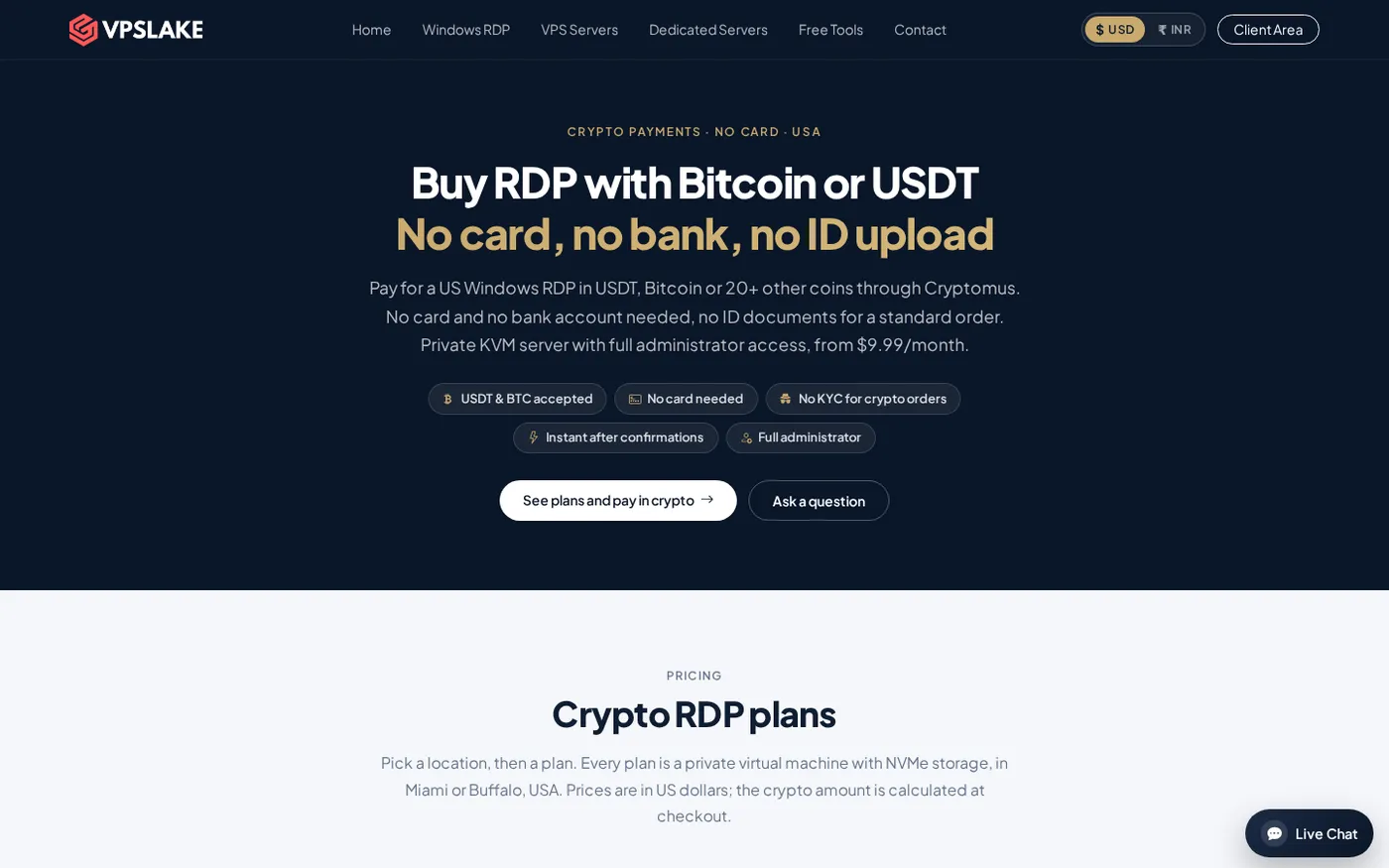
For a closer look at the payment flow, see how to buy RDP with crypto. The important safety check is simple: use only the wallet address and network generated for your current invoice, and do not reuse an old payment address.
Expected speed from Manila to Buffalo
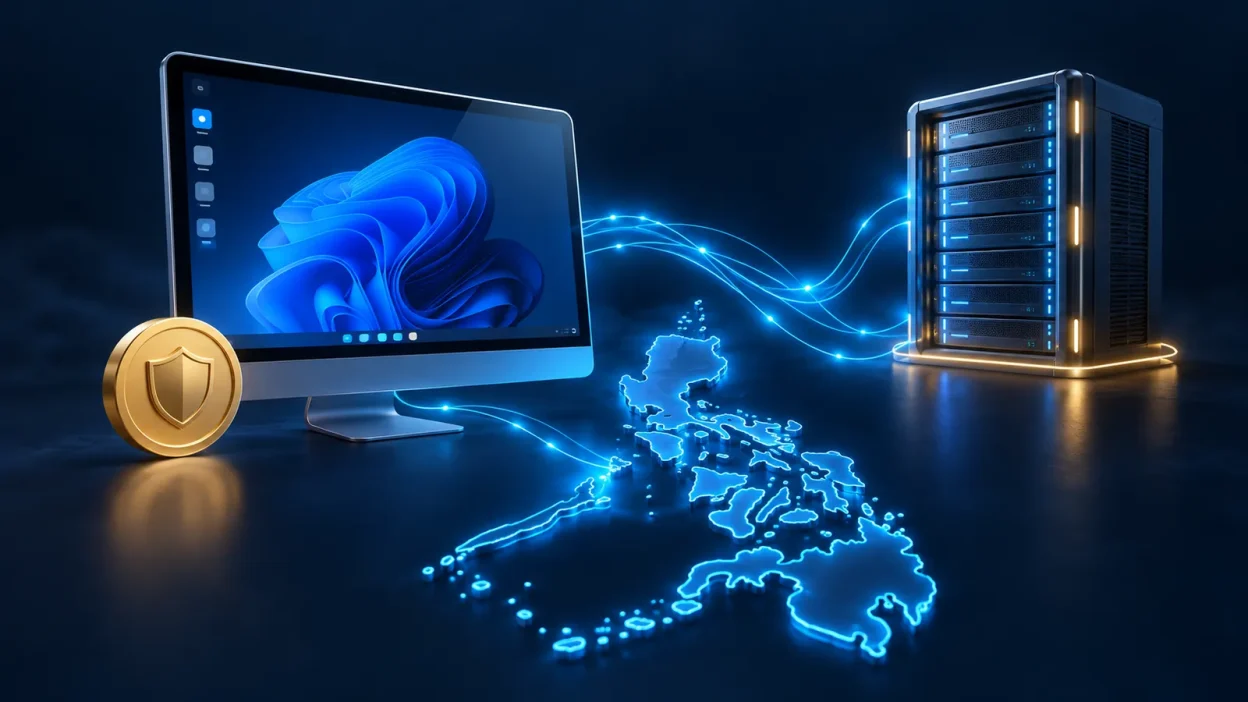
The remote desktop is hosted in Buffalo, New York, so your connection from Manila or another Philippine city crosses a long international route. Your experience depends on your ISP, Wi-Fi quality, route changes, screen resolution, and the remote application.
For US-facing work, Buffalo keeps the IP on the US East Coast. Judge the connection by stability and input response, not the server’s port number alone. A 200 Mbps RDP port does not make a weak home connection faster.
Use these practical settings for a smoother first session:
- Start with a single monitor and a moderate display resolution.
- Avoid high-motion media or moving large files while you need a responsive desktop.
- Keep the same RDP endpoint instead of switching between locations.
- If the session feels slow, test your local connection and reduce visual effects before increasing the plan size.
Microsoft documents Remote Desktop access from Windows, macOS, iOS/iPadOS, Android, and supported browser clients in its Remote Desktop Services connection guide.
Setup after payment
The basic order-to-login flow is:
- Choose Buffalo and select 4 GB, 8 GB, 16 GB, or 32 GB.
- Select the Windows image and billing cycle. Remember that the Windows licence is BYOL.
- Pay by card or crypto. Setup starts automatically after payment confirmation.
- Use the IP address, username, and Administrator password sent to you and shown in the client area.
- Connect with Remote Desktop, change the password if needed, apply your own Windows licence, and install only the software you trust.
The client area includes a browser console, reinstall, reboot, password reset, and usage information. Save the welcome email securely and never paste your Administrator password into a public forum.
If you are comparing shared and private services, private RDP vs shared RDP explains why the isolation and control of the private option matter. For most Filipino freelancers, raters, and US-facing operators, the Buffalo 4 GB plan is the right first test; upgrade only when your workload needs more RAM.
FAQ
What is the best RDP for the Philippines?
For US-facing work, VPSLake’s Buffalo Windows RDP 4 GB is the best starting point because it combines a dedicated US IPv4, private KVM VM, Full Administrator access, and 4 GB of reserved RAM for $9.99/mo. Choose 8 GB or more when you need several browser profiles or heavier multitasking.
Can I buy RDP from the Philippines without PayPal?
Yes. VPSLake lists Visa and Mastercard card checkout plus crypto through Cryptomus, including USDT and Bitcoin. The card invoice is in USD, while crypto checkout shows the exact coin, network, amount, and payment address.
Does the RDP include a Windows licence?
No. Buffalo is bring-your-own-licence: VPSLake supplies the Windows image and does not add a licence surcharge, but you provide a valid Windows licence or activation arrangement. The available image choices are Windows Server 2019, Windows 10 Pro, and Windows 11 Pro.
Is a US RDP fast enough from the Philippines?
It can be suitable for office tools, browsers, rater work, and trading terminals, but the feel depends on your ISP route, local connection, and display settings. Because the server is in Buffalo, expect more distance than a Philippine-hosted machine; test the session with your real workload before adding more RAM.
Which RDP plan should I choose?
Choose 4 GB for one desktop workload, 8 GB for several profiles or terminals, 16 GB for heavy multitasking, and 32 GB for team or multi-profile use. The plan’s reserved RAM and vCPU allocation matter more than choosing a larger port speed by itself.