


How to transfer files to RDP depends on the file size and which local resources your connection allows. For most Windows users, drive redirection is the best all-round method; copy and paste works for small files, while cloud storage or SFTP is better for repeatable transfers.
Quick comparison of RDP file transfer methods
Choose the method before you start. Your choice depends on whether you need a one-off copy, a two-way folder, or a repeatable workflow.
| Method | Best for | Transfer direction | Main trade-off |
|---|---|---|---|
| Drive redirection | Regular two-way copies and large files | Local to remote and remote to local | Requires reconnecting after changing the setting |
| Copy and paste | Small files and snippets | Both directions | Clipboard file copies are limited to files smaller than 2 GB |
| Cloud storage | Sharing files between several devices | Both directions | Requires an upload and download through the service |
| SFTP with WinSCP | Repeatable or cross-platform transfers | Both directions | The remote machine needs an SSH/SFTP service |
| Browser download or upload | A trusted one-off file from a website | Usually local to remote | Depends on the website and browser access |
Microsoft describes local drives and USB storage as bidirectional RDP resources, so drive redirection is usually the most flexible choice. Its behavior can still be restricted by the RDP client, a server policy, or a managed hosting environment. See Microsoft’s drive redirection documentation for the underlying settings.
What you need before transferring files
You need an RDP connection that reaches the Windows desktop, access to the local file or folder, and enough free space on the destination. If the remote account is not an administrator, save files to a folder where that account has permission, such as its Downloads folder.
Decide whether you are uploading to the RDP, downloading from it, or transferring in both directions. For two-way work, drive redirection keeps the local folder visible during the session.
Only redirect a local drive that you trust. A redirected drive gives the remote session access to the selected local storage, so disconnect the RDP session or remove the redirection when you finish.
Step 1: Share a local drive through RDP
Drive redirection makes a selected local drive or folder appear inside the remote session. It is the best default for folders, repeated transfers, and files larger than 2 GB.
- End the current RDP session if you are already connected.
- On your local Windows computer, open Remote Desktop Connection. You can press
Win + R, typemstsc, and press Enter. - Select Show Options, open Local Resources, and select More under Local devices and resources.
- Expand Drives and select the drive that contains the files. Select OK, return to the connection screen, and connect.
- In the remote desktop, open File Explorer and select This PC. Look for a redirected drive with a name similar to
C on YOUR-COMPUTER. - Open the redirected drive, find the file, and copy it to a remote folder. To send a file back, copy it from the remote computer into the redirected drive.
You can also open \\tsclient\C in File Explorer, replacing C with the selected drive letter. If you change the selection, disconnect and reconnect. Success looks like the local drive appears under This PC and files copy in both directions.
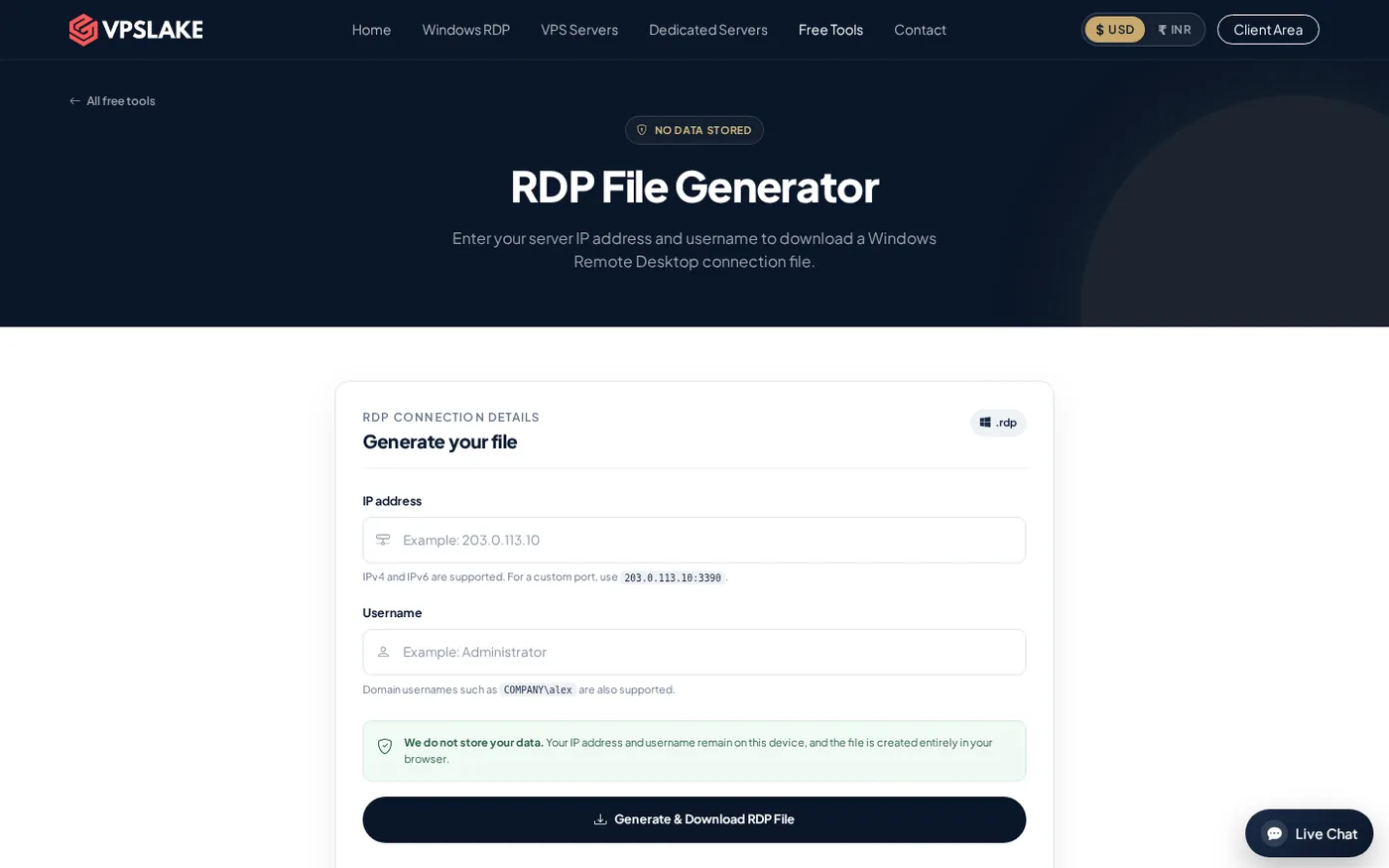
For repeat use, the RDP File Generator can save time when preparing a connection file. Review its settings before opening the file.
Step 2: Copy and paste files through the clipboard
Copy and paste is the quickest way to move a small file when clipboard redirection is enabled.
- On the local computer, select the file and press
Ctrl + C. - Switch to the RDP window, open the destination folder, and press
Ctrl + V. - To reverse the transfer, copy the file inside the remote session and paste it into a local folder after switching back.
This method suits documents, screenshots, and small archives. It is not right for large files: Microsoft documents a clipboard-redirection limit above 2 GB, and the copy can fail silently. Use drive redirection or SFTP instead; see the Microsoft note about copying files over 2 GB through RDP.
If text copies but files do not, clipboard file transfer may be disabled by a policy or by the RDP client settings. Reconnect with drive redirection enabled, then test again. For more clipboard-specific checks, see how to fix copy and paste not working in RDP.
Success looks like the file appears in the destination folder and its size matches the source.
Step 3: Use cloud storage
Cloud storage is useful when the file must pass through more than one computer or when drive redirection is unavailable.
- On the local computer, upload the file to a cloud account you control.
- Connect to the RDP session and open the provider’s website.
- Download the file to
C:\Users\YOUR_USERNAME\Downloads. For the reverse direction, upload the remote file and download it locally.
Use a private account for sensitive files. If you create a temporary share link, use the narrowest access available and remove it when finished. Success looks like the file completes its upload and download without being left on a public link.
Step 4: Transfer with SFTP or WinSCP
SFTP is a strong choice for recurring transfers, Linux-to-Windows workflows, and files that need a separate channel from the desktop session. WinSCP provides a two-panel interface, while OpenSSH provides command-line access. Microsoft’s OpenSSH for Windows overview identifies sftp as the secure file-transfer service and scp as a file-copy utility over SSH.
This requires an SSH/SFTP service on the destination. An ordinary Windows RDP login does not automatically enable SFTP, so confirm the service, port, username, and authentication method first.
With WinSCP, create a site using SFTP, the remote IP or hostname, the SSH port, and the service credentials or key.
After connecting, drag files between the local and remote panels. The basic OpenSSH upload pattern is:
scp "C:\Users\You\Downloads\report.zip" user@SERVER_IP:/remote/path/Use SFTP rather than plain FTP when the file contains private data. Confirm the server’s host key on first connection and keep the destination permissions as narrow as the task allows.
Success looks like the file reaches the intended remote path and the SFTP client reports a completed transfer.
Step 5: Download or upload through a browser
If the file comes from a trusted HTTPS website, download it directly inside the RDP session.
- Open the trusted source in the remote browser.
- Download the file to a known remote folder.
- Check the downloaded file before opening it.
- For a remote-to-local transfer, upload the file to a private service you control, then download it locally.
Do not use an unknown file host for a quick upload. Browser transfer is best for a one-off download; use drive redirection, cloud storage, or SFTP for private or recurring work. Success looks like the file is saved to the expected folder and passes your normal file check.
Moving large files faster and more reliably
Large transfers often fail because the method is wrong rather than because RDP is broken. Use these rules:
- Use drive redirection or SFTP for files over 2 GB. Clipboard file transfer is not supported for that size.
- Put many small files into a ZIP archive before moving them.
- Check free space on both the source and destination before starting.
- Copy to a simple path, such as
C:\Tempor Downloads, then move the file after checking it. - For recurring work, use SFTP or a dedicated cloud folder instead of repeating RDP setup.
Verify that the file arrived correctly
Do not rely only on the file name. Check the size and compare a hash for important archives, backups, and installers.
Run this in PowerShell on the source and destination:
Get-FileHash "C:\path\to\file.zip" -Algorithm SHA256The Hash values should match. If they differ, repeat the transfer with drive redirection or SFTP, and avoid editing or opening the source file while the copy is running.
Troubleshooting RDP file transfers
The local drive is not visible
The drive may not have been selected before the session started, or redirection may be disabled by policy. End the session, select it under Local Resources > More, and reconnect. If it still does not appear, ask the administrator whether drive redirection is allowed.
Text copies, but files do not
Clipboard text and file transfer can be controlled separately. Reconnect with the correct local-resource settings, or use drive redirection. If the issue remains, follow the RDP copy-and-paste troubleshooting steps.
A large file stops or never appears
If you used copy and paste, switch to drive redirection or SFTP. Microsoft documents the 2 GB clipboard limit, and the operation may fail silently. Also check destination free space.
The transfer is slow
Avoid copying thousands of tiny files individually. Archive them first and check whether another upload or download is using the same connection. For recurring transfers, SFTP or cloud storage is easier to organize.
FAQ
Can I transfer files to RDP without FTP?
Yes. Drive redirection and clipboard copy and paste are built into common Windows RDP clients. Use drive redirection for folders or large files, and reserve clipboard transfer for smaller files.
What is the best way to transfer a large file to RDP?
Use drive redirection or SFTP rather than clipboard copy and paste. Microsoft documents that clipboard file transfers larger than 2 GB are unsupported, while drive redirection is the native alternative.
Can I transfer files from RDP back to my computer?
Yes. With drive redirection, copy the file from the remote desktop into the redirected local drive. You can also copy and paste a small file, upload the remote file to private cloud storage, or download it through an SFTP client.
Why can I copy text but not files in RDP?
Clipboard text and file transfer may be affected by different client or server policies. Reconnect with drive redirection enabled, or ask the administrator whether clipboard file transfer is restricted.