
Remote desktop black screen problems usually mean the RDP session connected but Windows did not render the desktop correctly. Work through these nine fixes in order: start with Explorer and client display settings, then test graphics, UDP, the session state and finally the server console.
What you need before troubleshooting
Keep the remote computer’s address, a valid administrator account, and the device you normally use for RDP nearby. If you manage a VPS, keep its browser console ready.
First, identify which black screen you have
The symptom tells you where to start:
| What you see | Start with |
|---|---|
| No sign-in screen | The Remote Desktop error 0x204 checklist |
| Black after sign-in, with a cursor | Steps 1–5 |
| Screen appears, then turns black or freezes | Steps 3, 6 and 7 |
| Black in RDP but normal in the browser console | Step 8 |
Step 1: Open the security screen and refresh the desktop
Why this helps: a connected session can be healthy even when explorer.exe, the Windows shell, did not start or stopped responding.
Inside the RDP window, press Ctrl + Alt + End. Choose Task Manager. If Task Manager opens, select Windows Explorer, right-click it and choose Restart.
If Windows Explorer is not listed, select Run new task in Task Manager, enter the command below, and press Enter:
explorer.exeIf the desktop returns, the connection worked and the shell was the missing piece. For a persistent problem, Microsoft recommends checking that the Winlogon Shell value is explorer.exe; back up the registry before changing it, as described in the black-screen-after-sign-in scenario guide.
Success looks like: the taskbar, desktop icons and Start menu return without reconnecting.
Step 2: Reset the remote display driver
Why this helps: Windows can finish sign-in while the graphics path remains stuck. This is especially worth testing if the black screen started after a Windows or display-driver update.
With the remote session focused, press Windows + Ctrl + Shift + B. The display may flicker or make a short sound while Windows resets the graphics driver. Wait a few seconds before clicking inside the session again.
If the shortcut does not reach the remote computer, use Task Manager from Step 1 or the host’s console in Step 8. From the console, install current Windows updates and the official driver, then restart.
For suspected WDDM problems, an administrator can test Use WDDM graphics display driver for Remote Desktop Connections in Local Group Policy; disabling it uses XDDM and requires a restart. See Microsoft’s TerminalServer policy reference.
Success looks like: the same session redraws, or a fresh connection shows the desktop normally after the restart.
Step 3: Disable persistent bitmap caching
Why this helps: the RDP client stores frequently used screen bitmaps locally. A stale or damaged cache can make a new session display old or empty visual data even though Windows is responding.
On a Windows client:
- Press
Windows+R, typemstsc, and press Enter. - Select Show Options, then open the Experience tab.
- Clear Persistent bitmap caching.
- Return to General, select Save As, and save a new
.rdpfile. - Close the old RDP window and connect with the new file.
Microsoft documents bitmap persistence as a client setting that can be set to zero to disable caching. Leave it disabled while you test a normal reconnect; restore it later if the issue was temporary.
Success looks like: the new profile reaches the desktop while the old saved profile still produces a black screen.
Step 4: Simplify resolution, monitors and colour depth
Why this helps: an oversized session, multiple monitors or an unusual colour setting increases the amount of display negotiation and rendering RDP must complete at sign-in.
Open mstsc again and make a deliberately simple test profile:
- On Display, move the resolution slider down and clear Use all my monitors for the remote session.
- On Experience, clear Desktop background, Font smoothing, and Visual styles.
- If your client exposes a Colors setting, choose a lower colour depth for this test. In a saved
.rdpfile, the corresponding setting issession bpp:i:16. - Save the profile under a new name and reconnect.
Microsoft maps session bpp to the colour depth in connection options and notes that larger desktops consume more memory and bandwidth. This test shows whether the profile was too complex.
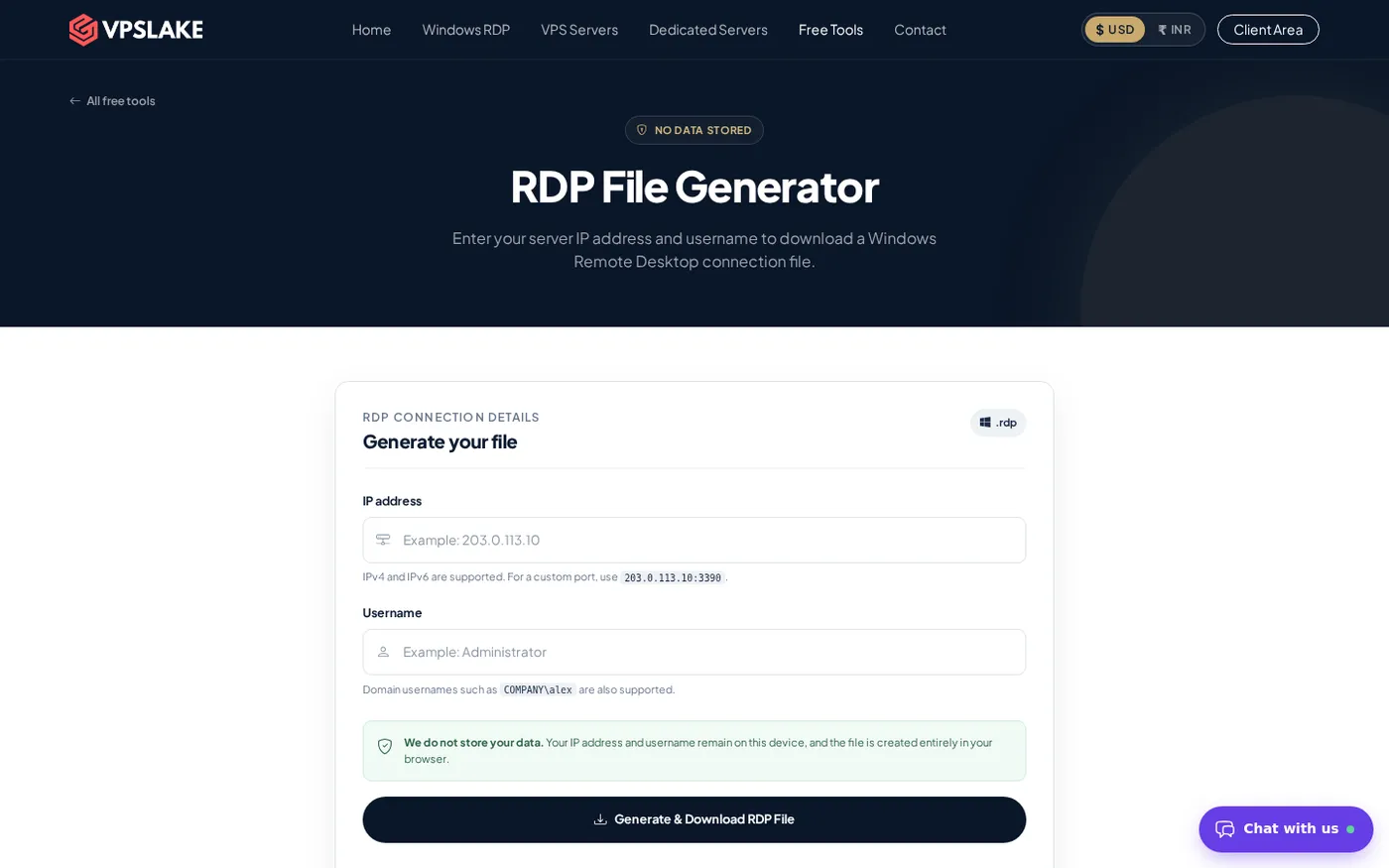
You can also use VPSLake’s RDP file generator to create a fresh profile.
Success looks like: the low-resolution, single-monitor session shows the desktop. Restore one setting at a time until you find the trigger.
Step 5: Turn off UDP for a controlled transport test
Why this helps: modern RDP can use UDP as well as TCP. A problem in the UDP path can leave the session connected but stop screen updates, particularly across VPNs, restrictive Wi-Fi or changing network routes.
On the Windows device you connect from, open Command Prompt as administrator and run:
reg add "HKLM\SOFTWARE\Policies\Microsoft\Windows NT\Terminal Services\Client" /v fClientDisableUDP /t REG_DWORD /d 1 /fRestart the RDP client and test again. To undo this client-side test later, run:
reg delete "HKLM\SOFTWARE\Policies\Microsoft\Windows NT\Terminal Services\Client" /v fClientDisableUDP /fIf you administer the remote host, open gpedit.msc and go to Computer Configuration > Administrative Templates > Windows Components > Remote Desktop Services > Remote Desktop Session Host > Connections. Enable Select RDP transport protocols, choose Use only TCP, run gpupdate /force, and restart. Microsoft’s transport guidance explains that the default can use UDP when available.
Success looks like: the same credentials and display profile work when UDP is disabled. If nothing changes, remove the temporary client policy and continue.
Step 6: Log off a stale or duplicated session
Why this helps: reconnecting can return you to a session that is still running but no longer rendering correctly. This is common after a network drop, laptop sleep or an RDP client crash.
From an administrator Command Prompt on the remote computer, list sessions:
quserIdentify your own session ID and log off only that session with:
logoff <session-id>Replace <session-id> with the number shown by quser; do not log off another user’s active session. If RDP is unusable, run the commands through the browser console in Step 8, then reconnect with a new profile.
Success looks like: the next login creates a clean desktop instead of reopening the same black session.
Step 7: Check the shell and system state from the console
Why this helps: if the display remains black across different RDP profiles, the problem may be inside the Windows session rather than in the RDP client.
Use Task Manager or the console to verify HKEY_LOCAL_MACHINE\SOFTWARE\Microsoft\Windows NT\CurrentVersion\Winlogon\Shell is explorer.exe. Then open eventvwr.msc and check Windows Logs > Application for Explorer errors and Windows Logs > System for display-driver, Remote Desktop Services or update errors. If the issue began after an update, install the latest cumulative update for that Windows version and restart.
If explorer.exe repeatedly stops, use a clean boot or Safe Mode to isolate a startup application or shell extension.
Success looks like: the event log points to a specific shell, driver or update problem, and the next login stays visible.
Step 8: Use the browser console when RDP shows nothing
Why this helps: a browser console gives you another view of the VM, so you can restart, log off, update or repair Windows without relying on the RDP display channel.
For a VPSLake Buffalo Windows RDP, sign in to the client area and open the server’s browser console. Try the least disruptive action first: run explorer.exe, log off your own stuck session, or restart Windows after saving work. The client area also provides reboot, password-reset and reinstall controls.
If the console shows a normal Windows desktop while RDP is black, focus on Steps 3–5. That points to the client, cache, display negotiation or transport path.
Success looks like: the console gives you a usable desktop or lets you restart the affected session, after which a fresh RDP connection draws normally.
Step 9: Reinstall only after protecting your data
Why this helps: a damaged Windows image or driver stack may not be practical to repair remotely. Reinstalling removes the current operating-system state.
Before choosing reinstall:
- Copy files, license keys, configuration exports and database backups outside the VM.
- Record the RDP username, IP address, firewall rules and application settings.
- Test a second RDP device or the browser console to confirm the problem is not client-specific.
- Reinstall the Windows image from the client area, apply updates and reconnect with a new
.rdpprofile.
On a VPSLake server, use the client-area reinstall control only after you have completed the backup. You can choose the available Windows image again on the order form, but you still need to bring your own Windows licence because Windows is BYOL.
Success looks like: a clean, updated Windows session accepts RDP and displays the desktop.
Verify the fix
Do not stop at one successful login. Disconnect, wait a minute, reconnect, and open File Explorer, Task Manager and one normal application. Test changed settings over several reconnects.
If it returns, note whether it is black before sign-in, after sign-in, only at full screen or only after reconnecting.
Troubleshooting when these fixes do not help
If you cannot reach sign-in, use the remote desktop connection error checklist. For a visible but sluggish session, see Remote Desktop Slow or Laggy? or how to fix copy and paste in RDP.
FAQ
Why is my remote desktop black after login?
The session may be connected while Explorer, the graphics driver, cached bitmap data or the display profile is stuck. Try Ctrl + Alt + End, launch explorer.exe, then test a profile with bitmap caching disabled.
How do I fix a black screen on RDP in Windows 11?
Start with Explorer and the graphics reset shortcut, then simplify display settings and check for current Windows updates. If it continues, test UDP disabled and inspect the shell and event logs.
Does disabling UDP fix a black RDP screen?
It can help when screen updates fail along the UDP path. Force TCP on the client, reconnect, and restore the default policy if nothing changes.
Can I fix an RDP black screen without connecting to the desktop?
Yes. Use the hosting provider’s browser console to launch Explorer, log off the stuck session, restart Windows, install updates or back up data before reinstalling.
Should I reinstall Windows when RDP is black?
Only after testing a second client, the browser console, Explorer, cache, display settings and transport. Back up everything first because reinstalling removes the current Windows state.