

Windows 11 on VPS can work well, but a self-install often stops at the TPM 2.0 or Secure Boot check. The simplest route is a provider-supplied Windows 11 Pro image on a VM with enough storage and RAM, followed by activation with your own license.
Windows 11 hardware requirements
Microsoft’s current requirements apply to virtual machines as well as physical PCs. The important difference is that a VPS has to present the required hardware features virtually, through the hypervisor and the guest image.
| Component | Microsoft minimum | What it means on a VPS |
|---|---|---|
| Processor | 1 GHz or faster, two or more cores, compatible 64-bit CPU | Give the VM at least two virtual processors; the host CPU also needs to meet Microsoft’s requirements. |
| Memory | 4 GB RAM | This is a boot minimum, not a comfortable multitasking target. |
| Storage | 64 GB or larger | Leave room for Windows updates, restore data, and your applications. |
| Firmware | UEFI and Secure Boot capable | The VM must expose UEFI-style firmware and a Secure Boot option. |
| Security chip | TPM 2.0 | A virtual TPM, commonly called a vTPM, must be available to the guest. |
These figures come from Microsoft’s Windows 11 requirements, which also specifies Generation 2, Secure Boot, a virtual TPM, at least 4 GB of memory, and two or more virtual processors for Windows 11 VMs. Treat 64 GB as a floor and leave additional room for updates and applications.
TPM and Secure Boot on virtual machines
TPM is a security component that stores and helps protect keys and records information about the boot process. On a physical computer it may be a chip on the motherboard or firmware-based security. In a VPS, the equivalent is a vTPM presented by the virtualization platform.
Secure Boot is different. It is a UEFI firmware feature that checks boot components before Windows starts. A VPS can have a virtual TPM but still fail the Windows 11 check if its firmware is legacy BIOS, or if Secure Boot is not enabled in the VM configuration.
The useful distinction is between your local computer and the remote VM. Your laptop’s TPM does not make the VPS compatible. The remote VPS needs its own virtual processor, UEFI/Secure Boot configuration, and vTPM support. Microsoft notes that a virtual TPM 2.0 can be emulated for the guest independently of the physical TPM version on a Hyper-V host.
If you create the VM yourself, configure these features before starting Windows Setup. If you rent a VPS, the provider controls the hypervisor settings. That is why a normal ISO install can reach the message that the PC does not meet Windows 11 requirements even when the VPS has plenty of CPU and RAM.
Installing yourself vs a ready Windows 11 image
There are two practical ways to put Windows 11 on a VPS:
- Create a compatible Gen 2-style VM, attach an ISO, enable UEFI, Secure Boot, and vTPM, then install Windows yourself.
- Choose a provider’s Windows 11 Pro image when ordering, connect over RDP, and complete activation with your own license.
The first route gives you more control over the image and partition layout, but you are responsible for every compatibility check: firmware, vTPM, Secure Boot keys, storage, display drivers, and boot order.
The ready-image route is usually the better fit when your goal is a usable remote desktop rather than learning the hypervisor. VPSLake’s Buffalo Windows RDP order form offers Windows 11 Pro as an image choice alongside Windows 10 Pro and Windows Server 2019. The plan includes a private KVM VM, reserved RAM, full Administrator access, and a dedicated US IPv4 address; Windows licensing remains your responsibility.
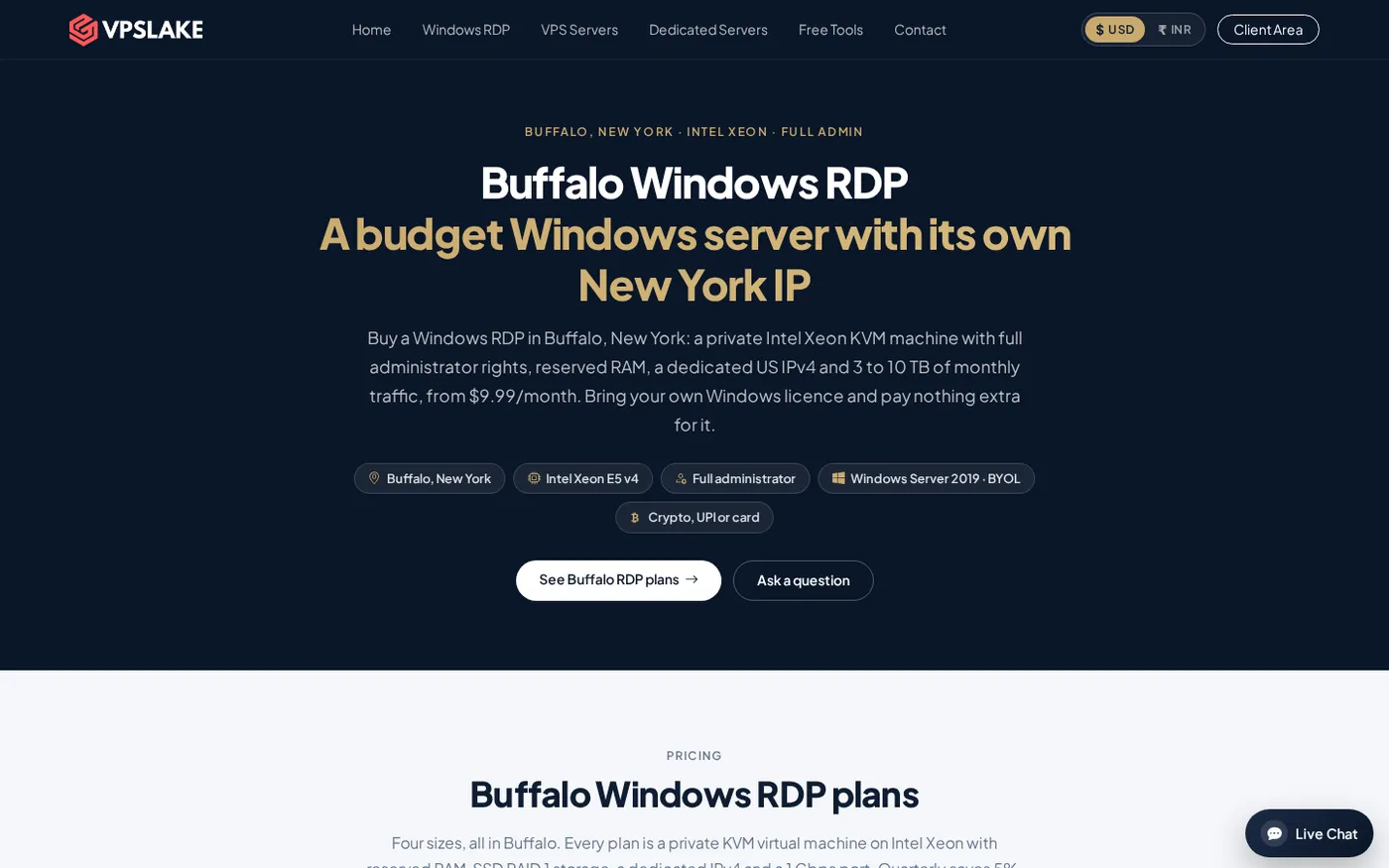
The Windows 11 RDP offer starts at $9.99/mo for 4 GB RAM and 3 vCPU. If you expect several browser tabs, desktop applications, or frequent updates, the 8 GB tier is $16.99/mo and lists 100 GB SSD storage. Compare the desktop experience with Server editions in Windows 10 RDP vs Windows Server RDP.
Activating Windows 11 with your own license
VPSLake supplies the Windows image, not a Windows license. This is a bring-your-own-license arrangement: you need a genuine license or digital entitlement that covers the Windows 11 Pro installation and your intended virtualized use.
Microsoft says Windows 11 activation uses either a digital license or a 25-character product key. After connecting to the desktop, open Settings > System > Activation to check the status. If Windows asks for a key, enter yours there; if your entitlement is linked to a Microsoft account, sign in with the account associated with it.
Do not assume that an old key can be moved to every new VM. License rights depend on how the license was obtained and on the virtualization arrangement. Microsoft’s Windows 11 licensing guidance for virtual desktops explains that virtualization rights vary by license and licensing program, so check the terms that apply to your copy before deployment.
Keep your product key or account details private, and do not paste them into support tickets or screenshots. For related buying checks, see How to Buy a Windows VPS: 10 Checks Before You Pay.
How much RAM does Windows 11 need on a VPS?
Four gigabytes is Microsoft’s minimum for a Windows 11 VM, but the minimum only answers whether the system can meet the baseline. Remote desktop responsiveness depends on the applications you leave open, browser memory use, update activity, and how many concurrent tasks the VM handles.
Use this as a practical starting point:
| Workload | Sensible starting point | Why |
|---|---|---|
| One light desktop or browser profile | 4 GB RAM, 3 vCPU | Keeps the entry cost low for a simple remote workspace. |
| Several browser profiles or a few desktop applications | 8 GB RAM, 4 vCPU | Leaves more memory for Windows services, updates, and active applications. |
| Many profiles, several terminals, or heavier automation | 16 GB RAM, 6 vCPU | Gives the desktop more room when several processes run together. |
| Team use or heavy multi-profile workloads | 32 GB RAM, 8 vCPU | Provides the largest Windows RDP configuration in the Buffalo range. |
These are workload guidelines, not Microsoft’s minimums. Start with the smallest plan that matches your work, then leave capacity for updates and the applications you run together.
What to check before ordering Windows 11 on a VPS
Use this short checklist before choosing an image or asking a provider to install Windows 11:
- VM compatibility: Confirm that the service is KVM or another virtualization platform that can present the required guest hardware, not just a shared desktop session.
- vTPM and Secure Boot: Confirm that the Windows 11 image or VM configuration supports both features. One without the other may still leave Setup blocked.
- Virtual processors: Use at least two vCPU, then size up for your applications.
- Available storage: Treat 64 GB as the floor for Windows 11 and allow additional space for updates and software.
- Edition: Select Windows 11 Pro if you need the Pro desktop and administration features; do not confuse it with Windows Server.
- License: Have a valid Windows license or digital entitlement ready, and confirm that its terms cover the virtual machine.
- Remote access: Check that full Administrator access and RDP credentials are provided after provisioning.
VPSLake’s Windows 11 RDP service follows the ready-image route: select Windows 11 Pro on the Buffalo order form, then use RDP. Browser console, reinstall, and reboot controls are available in the client area.
Common mistakes with Windows 11 VPS installations
Treating 4 GB RAM as a performance promise. Four gigabytes is a minimum; browser-heavy work, multiple terminals, or automation can need more.
Ignoring disk capacity. Windows 11’s 64 GB minimum is not the same as having 64 GB free after installation. Reserve space for updates and applications.
Assuming the VPS price includes Windows licensing. With VPSLake’s BYOL plans, the image is supplied and you bring the license.
Using an unsupported bypass as the main plan. Registry or ISO workarounds may skip an installer check, but they do not add vTPM, Secure Boot, or license rights. A compatible ready image is easier to maintain.
If the VM is already provisioned, How to Set Up a Windows VPS After Purchase covers the first connection and basic checks.
Choose the right route
Choose self-installation when you control the hypervisor and need a custom image or repeatable deployment. Choose a provider-supplied Windows 11 Pro image when you want to work over RDP without troubleshooting Gen 2, Secure Boot, and vTPM settings. For most buyers, storage, RAM, Administrator access, and a valid license are the deciding factors.
FAQ
Can you run Windows 11 on a VPS without TPM?
Microsoft’s supported VM configuration includes TPM 2.0, usually exposed as a virtual TPM. A workaround may bypass an installer check, but it does not give the VM the security feature or change your licensing obligations; use a provider image or VM platform that supports vTPM.
Does a Windows 11 VPS need Secure Boot?
Yes, Microsoft’s VM guidance calls for Secure Boot and a virtual TPM, along with Gen 2-style UEFI firmware. If Secure Boot is unavailable, a self-install can fail the compatibility check even when the VPS has enough RAM and CPU.
How much RAM is enough for Windows 11 on a VPS?
Four gigabytes is the official minimum, and it can suit one light desktop workload. Choose 8 GB or more when you will use several browser profiles, multiple applications, or heavier automation at the same time.
Do I need to buy a Windows license for a VPS?
With a BYOL service, yes: the provider supplies the Windows image and you supply the license. Check activation in Settings > System > Activation, then verify that the license terms cover your virtualized deployment.