
What port does RDP use? Remote Desktop Protocol uses TCP port 3389 by default, and modern Windows hosts can also use UDP port 3389 for the RDP transport. Knowing the protocol and port matters when you are checking a firewall, testing a new Windows VPS, or connecting to a server whose administrator changed the default.
Short answer: RDP uses TCP and UDP 3389
The default RDP port is 3389. On a normal Windows Remote Desktop setup, the server-side listener is associated with both transports:
| Transport | Default destination port | What it does |
|---|---|---|
| TCP | 3389 | Establishes the reliable RDP connection and carries session traffic |
| UDP | 3389 | Can carry RDP transport traffic when the client and network support it |
Microsoft lists TCP and UDP 3389 as the standard port for Remote Desktop Services. The port can be changed on the host, so 3389 is the default, not a guarantee that every server uses it. A firewall rule also has to permit the port, and the RDP service must be running and enabled.
The number belongs to the destination on the Windows server. Your local computer normally uses a temporary source port to reach the server; you do not need to set your local source port to 3389.
Why RDP uses both TCP and UDP
TCP and UDP solve different transport problems.
TCP creates an ordered, reliable stream. It confirms delivery, retransmits missing data, and controls the connection when packets arrive out of order. That makes it suitable for establishing the session and carrying traffic that must arrive correctly.
UDP has less connection overhead. RDP can use it as an additional transport for a more responsive session, especially when the network has latency or changing conditions. It is not a second RDP login port: UDP uses the same default port number, 3389, but it is a separate transport protocol.
If UDP 3389 is blocked while TCP 3389 is reachable, a client may still connect over TCP. You may notice different performance or session behavior, depending on the Windows versions, client, and network path. If both protocols are intended to work, allow both explicitly in the relevant firewall rules.
There is an important distinction here:
- TCP 3389 open means a TCP connection can reach the server’s RDP listener.
- UDP 3389 allowed means the RDP client has a path to use the UDP transport.
- A successful port test does not prove that your username, password, NLA setting, or RDP permissions are correct.
For the broader port map, see Microsoft’s official list of ports used by Remote Desktop Services.
How to check which port RDP listens on
If you have administrator access to the Windows computer, check the configured listener instead of assuming it is 3389. Open PowerShell as an administrator and run:
Get-ItemProperty `
  -Path 'HKLM:\SYSTEM\CurrentControlSet\Control\Terminal Server\WinStations\RDP-Tcp' `
  -Name 'PortNumber'
The PortNumber value is the configured RDP listening port for the default RDP-Tcp listener. On an unchanged system, it normally reports 3389. If the value is shown in hexadecimal by another registry tool, switch to decimal before interpreting it as a port number.
You can also check active listeners. Replace <port> with the value you found:
Get-NetTCPConnection -LocalPort <port> -State Listen
Get-NetUDPEndpoint -LocalPort <port>
The TCP command should return a listening endpoint if the RDP service is accepting TCP connections on that port. The UDP command helps you see whether a UDP endpoint exists, but the result can depend on the Windows build and the current RDP transport state.
Next, inspect the Windows Firewall rules. This command displays the protocols and local ports associated with rules in the built-in Remote Desktop group:
Get-NetFirewallRule -DisplayGroup 'Remote Desktop' |
  Get-NetFirewallPortFilter |
  Select-Object Protocol, LocalPort
A valid listener and a firewall rule are separate checks. You can have RDP configured for 3389 but still be unable to connect because a Windows Firewall profile, cloud firewall, router, or upstream network filter blocks the traffic.
From another Windows computer, test TCP reachability with:
Test-NetConnection -ComputerName <server-ip-or-hostname> -Port 3389If you use a custom port, replace 3389 with that port. TcpTestSucceeded: True confirms that the TCP path is reachable; it does not complete an RDP login.
How to connect to RDP on a custom port
The connection format is:
server-address:portFor example, if the server’s public IP is 203.0.113.10 and RDP listens on 3390, enter:
203.0.113.10:3390In the Windows Remote Desktop Connection app, type that value in the Computer field. You can also launch the client from a command prompt or PowerShell window:
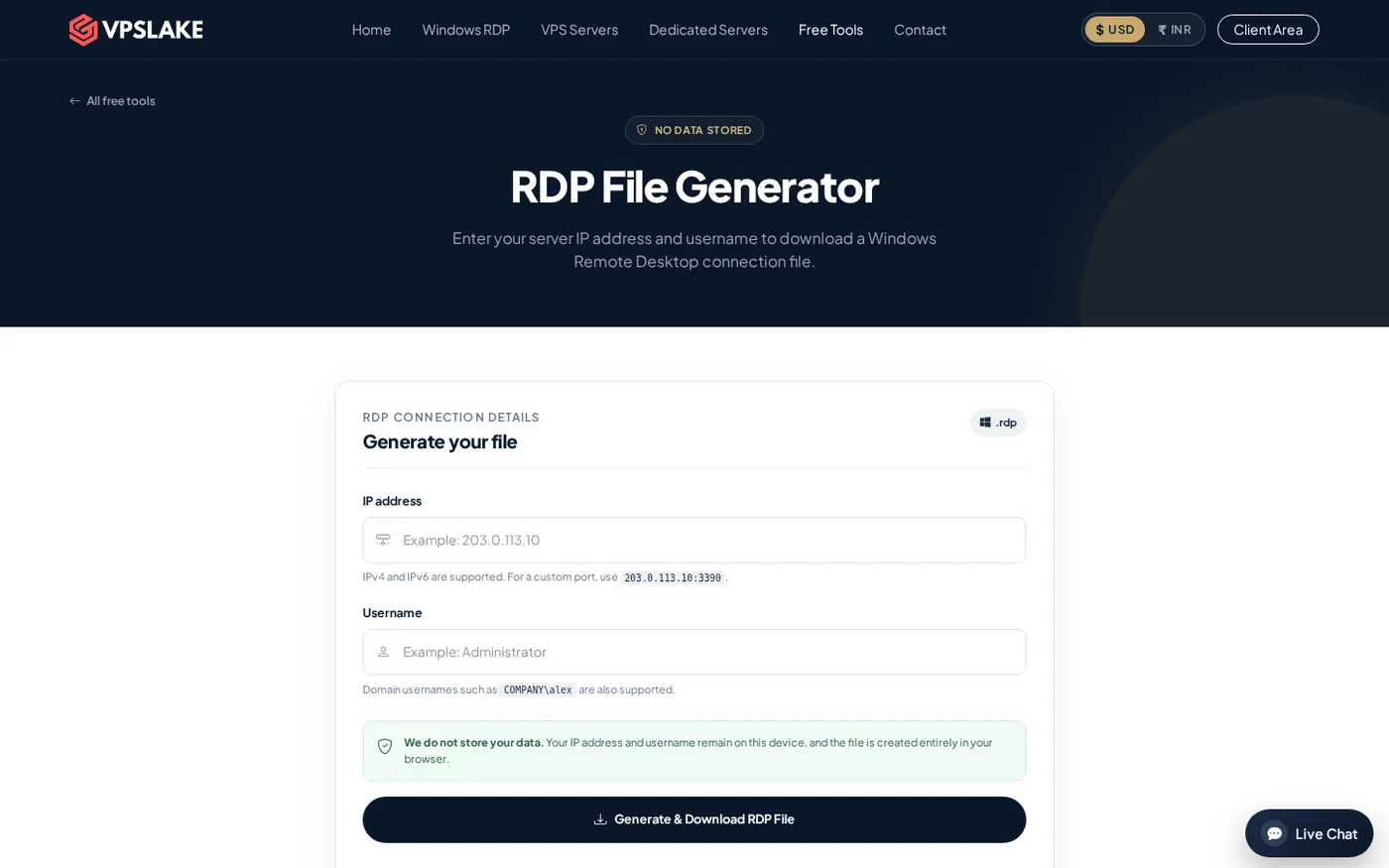
mstsc.exe /v:203.0.113.10:3390If you normally connect with an .rdp file, the file can specify the destination as well. VPSLake’s free RDP file generator is useful when you want to create a connection file with the server address and custom port already filled in.
Use the same address and port for every layer that forwards or filters the connection. For example, if a router forwards public TCP 3390 to private TCP 3389, the client uses public-address:3390, while the internal forwarding rule targets 3389. If you changed the listener itself to 3390, the server firewall and any external firewall must allow 3390 too.
The common connection mistakes are simple:
- Entering
server-address,portinstead ofserver-address:portin the Remote Desktop client. - Changing the registry value but leaving the old firewall rule as the only allowed port.
- Opening TCP on the new port but forgetting UDP when the configuration is meant to support both transports.
- Testing the old port after the server was changed.
- Changing the port and restarting before confirming that you still have console or recovery access.
For a complete walkthrough of the change, see how to access RDP with a custom port.
If you are changing the standard listener on Windows Server, the related guide to changing the default RDP port covers the same configuration in a server-focused format.
Should you change port 3389?
Sometimes. A custom port can fit a port-forwarding plan, avoid a conflict with another service, or match a provider’s network design. It can also reduce casual noise from scanners that only probe the conventional port, but it does not make the RDP service secure by itself.
Changing the number does not replace a strong, unique password, current Windows updates, Network Level Authentication, least-privilege user accounts, or a firewall policy that limits who can reach the service. It also does not encrypt a connection more strongly than the RDP configuration already does. Treat the port as a routing setting, not an authentication or access-control feature.
If you change it, plan the full sequence:
- Confirm that you have administrator access and a recovery or console path.
- Choose an unused port and record it in your password manager or server documentation.
- Change the
PortNumbervalue for the correctRDP-Tcplistener. - Add matching inbound firewall rules for TCP and, if needed, UDP on the new port.
- Restart the Remote Desktop Services service or the server as required by the configuration.
- Test the new port from a second connection before closing your current session.
- Remove or disable obsolete firewall rules only after the new connection works.
Microsoft’s documentation for changing the Remote Desktop listening port shows the registry location, PowerShell commands, firewall examples, and hostname:port connection format. Follow that documentation for the Windows version you manage, because a mistake in the registry or firewall can lock you out.
What to check when RDP port 3389 is not working
Start at the server and work outward. This keeps a firewall problem separate from a credentials problem.
| Check | What it tells you |
|---|---|
| Remote Desktop is enabled | Windows is configured to accept remote sessions |
TermService is running | The Remote Desktop Services service is available |
PortNumber is correct | You are testing the configured listener, not an assumed port |
| TCP firewall rule is enabled | The basic RDP transport is allowed through Windows Firewall |
| UDP rule is enabled, if required | The optional RDP UDP transport has a matching path |
| Cloud or provider firewall allows the port | Traffic is not blocked before it reaches Windows |
Test-NetConnection succeeds | A TCP path exists from the test machine |
| The account is allowed to sign in | The connection can pass authorization after reaching the service |
If the TCP test fails, inspect the destination IP, the port, Windows Firewall, and any provider-level firewall first. If the TCP test succeeds but the login fails, check the username format, password, account status, Remote Desktop Users membership, NLA compatibility, and server policy. A port number cannot fix an authentication or permissions error.
When you are testing a Windows VPS, also confirm that you are using its current public IPv4 address. A private address such as 10.x.x.x, 172.16.x.x through 172.31.x.x, or 192.168.x.x is not normally reachable directly from the public internet without routing or forwarding.
FAQ
Is RDP always on port 3389?
No. 3389 is the default for the standard RDP listener, and it is the port most clients expect when you enter only a hostname or IP address. An administrator can configure another port, after which the client must use the host:port format and the firewall must allow the new value.
Is RDP TCP or UDP?
RDP can use both TCP and UDP. TCP 3389 is the core default path, while UDP 3389 can be used as an additional transport when the client, server, and network support it. If UDP is unavailable, a TCP connection may still work.
How do I connect to RDP on port 3390?
Enter server-address:3390 in the Remote Desktop client, or run mstsc.exe /v:server-address:3390. The server must actually listen on 3390, and its Windows Firewall plus any external firewall or port-forwarding rule must allow the matching traffic.
Is changing the RDP port enough to secure a server?
No. A custom port is a configuration choice and may reduce generic scans, but it does not replace updates, strong credentials, NLA, restricted firewall access, or a secure gateway or VPN design. Keep the service protected even when it is no longer using 3389.
How can I find my RDP port without guessing?
On the server, query HKLM:\SYSTEM\CurrentControlSet\Control\Terminal Server\WinStations\RDP-Tcp and read PortNumber. Then confirm the active listener and firewall rules, and test the same port from another machine with Test-NetConnection.