
A dedicated server for Proxmox should give you enough CPU, reserved RAM, fast storage and remote management to run several guests without fighting for resources. For most buyers planning around 15 to 30 mixed VMs, VPSLake’s DS-3 is the best balance; smaller homelabs can spend less on DS-1 or DS-2, while memory-sensitive workloads should consider DS-4.
| Plan | CPU and memory | Storage | Best fit |
|---|---|---|---|
| DS-3 | Ryzen 9 5950X, 16C/32T, 128 GB DDR4 | 2x 1 TB NVMe | Around 15–30 light or mixed VMs, build runners, databases and several Windows guests |
| DS-1 | Ryzen 5 3600, 6C/12T, 32 GB DDR4 | 500 GB NVMe | A first Proxmox host or about 5 light VMs |
| DS-2 | Ryzen 7 5800X, 8C/16T, 64 GB DDR4 | 1 TB NVMe | Around 15 small VMs or containers with moderate storage needs |
| DS-4 | EPYC 7443P, 24C/48T, 128 GB DDR4 ECC | 2x 1 TB NVMe | CPU-heavy guests or workloads where ECC memory is a priority |
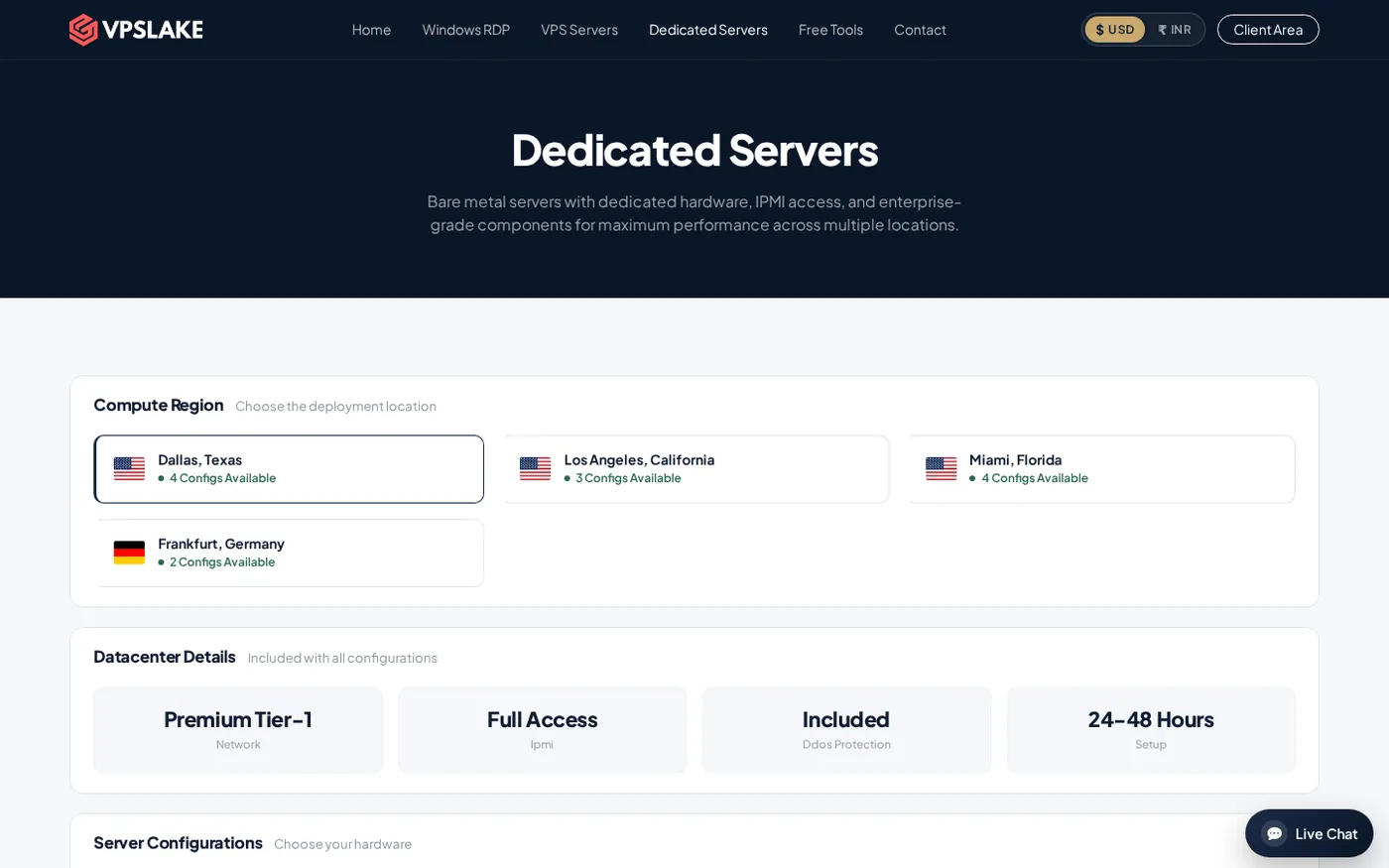
All four plans include full IPMI access, DDoS protection, a premium Tier-1 network and setup in 24–48 hours. DS-1 starts at $34.99/mo, DS-2 at $64.99/mo, DS-3 at $99.99/mo and DS-4 at $129.99/mo. Dedicated servers are ordered by WhatsApp from the VPSLake dedicated server page.
What Proxmox needs from hardware
Proxmox VE is installed directly on the physical server and then manages KVM virtual machines and LXC containers. That makes the host’s actual hardware important: every guest draws from the same CPU, memory, storage and network path.
The official Proxmox hardware requirements call for a 64-bit Intel or AMD CPU with VT-x or AMD-V, at least 2 GB for the host and Proxmox services, plus the RAM assigned to guests. That 2 GB is a floor for the host, not a sensible total for a multi-VM server.
For a production-style host, focus on these four checks:
- Virtualization support: AMD-V is required for normal KVM virtualization on AMD processors. If you need PCIe passthrough, also check for AMD-Vi or Intel VT-d support.
- Memory headroom: total the RAM assigned to guests, then leave room for the host, filesystem cache, backups and spikes.
- Fast, redundant storage: Proxmox recommends fast SSD storage and a design that protects the host from a single disk failure.
- Remote management: IPMI gives you an out-of-band path when the operating system is not reachable.
Cores and RAM per VM count
RAM is usually the first limit for a Proxmox node. CPU overcommit can work when workloads peak at different times, but assigning more virtual CPUs than the host can deliver does not create performance. Treat the following as planning ranges, not guarantees:
| Workload target | Practical starting point | VPSLake fit |
|---|---|---|
| 5 light VMs or containers | 6–8 physical cores, 32 GB RAM | DS-1 |
| 15 small-to-medium guests | 8–12 physical cores, 64 GB RAM | DS-2 |
| 30 light guests or 15 heavier VMs | 16+ physical cores, 128 GB RAM | DS-3 |
| CPU-heavy guests with the same RAM target | 24 physical cores, 128 GB ECC | DS-4 |
For example, five 4 GB VMs use 20 GB before host overhead, cache and growth. Fifteen 2–3 GB guests use 30–45 GB, while thirty 2–3 GB guests use 60–90 GB. Those totals explain why DS-1, DS-2 and DS-3 map naturally to the three planning ranges.
Disks: ZFS mirror on 2x NVMe
Storage affects boot time, database latency, VM backups and recovery. A single NVMe can be fast, but it does not provide local redundancy. If the server is hosting important guests, use two drives in a mirror when the hardware supports it and keep a separate backup copy.
With two 1 TB NVMe drives, a ZFS mirror provides roughly one drive’s usable capacity before filesystem overhead. You gain disk-failure resilience and read redundancy, not 2 TB of usable VM space. That is why DS-3 and DS-4 are the most natural choices when you want a mirrored local VM pool.
Proxmox’s documentation is specific about the controller: ZFS and Ceph should use non-RAID disks, because they are not compatible with a hardware RAID controller. If you choose ZFS, present the drives directly to it. If you choose hardware RAID instead, use a controller with battery-backed write cache and do not layer ZFS on top of that controller.
ZFS also uses memory. Proxmox estimates approximately 1 GB of additional memory per terabyte of used storage for ZFS or Ceph. Keep free space for snapshots and maintenance, and send backups to separate storage rather than treating a mirror as a backup.
For a single-node setup, a sensible layout is:
- Proxmox and VM disks on the local NVMe pool.
- ISO images and templates on the same pool only when capacity allows.
- Scheduled backups on a separate server or Proxmox Backup Server repository.
- Monitoring for pool health, memory pressure and storage usage.
The Proxmox administration guide explains the trade-off between ZFS mirrors, RAIDZ layouts and other storage types. For most two-drive VM hosts, a mirror is easier to reason about than trying to maximize raw capacity.
IPMI and installing your own ISO
Proxmox is a bare-metal installation. You normally download the ISO, boot the dedicated machine from it, select the target disks and then configure the host through the web interface. The official installation overview warns that the selected disks are used by the installation, so plan the disk layout before starting.
IPMI matters because a remote dedicated server does not give you a physical keyboard and monitor. Full IPMI can provide an independent console, power controls and hardware telemetry; systems that expose virtual media can also attach the Proxmox ISO remotely. That lets you boot the installer, observe the display and recover from a failed network or operating-system boot without waiting for someone to access the rack.
Before ordering, confirm the IPMI endpoint, remote-console method and virtual-media availability for the selected server. After installation, restrict management access to trusted addresses or a VPN and use strong credentials.
Which VPSLake plan fits 5, 15 or 30 VMs?
Around 5 VMs: DS-1 for a small host
DS-1 is the entry point: 6 cores, 32 GB RAM and a 500 GB NVMe. It fits a small lab, a few Linux services or several light guests where the storage footprint is modest. Use it when the priority is getting a full physical host at a lower monthly price and you can maintain separate backups.
Around 15 VMs: DS-2 for a compact private cloud
DS-2 moves to 8 cores and 64 GB RAM with a 1 TB NVMe. It is a better base for a group of small VMs, development environments or containers that share the server without needing 128 GB of memory. Size the guests by their peak usage; fifteen busy Windows or database VMs may need DS-3 instead.
Around 30 VMs: DS-3 as the balanced choice
DS-3 is the practical recommendation for a 30-VM target when the guests are light or mixed. Its Ryzen 9 5950X provides 16 cores and 32 threads, and 128 GB RAM gives you room for the host, ZFS overhead and guest growth. The two 1 TB NVMe drives also give you the hardware needed to plan a local mirror.
At $99.99/mo, DS-3 is the middle ground between a small single-disk host and the higher-CPU, ECC-focused DS-4.
CPU-heavy or ECC-sensitive workloads: DS-4
DS-4 has 24 cores and 48 threads, 128 GB DDR4 ECC and two 1 TB NVMe drives. It is the stronger fit for sustained parallel builds, multiple busy application servers or workloads where ECC memory is part of your hardware policy.
If you are still deciding between bare metal and a smaller virtual server, compare the resource-isolation differences in shared hosting vs VPS vs dedicated server. For workloads that do not need a hypervisor, a VPS may be simpler; Proxmox makes sense when you need to manage your own guest operating systems and network layout.
How to choose the final configuration
Use this order when comparing offers:
- Write down every planned VM or container, its peak RAM and its storage size.
- Add host memory and ZFS overhead before comparing the RAM total with the plan.
- Decide whether local disk redundancy is required. If yes, select two drives and plan a mirror.
- Check virtualization flags, IPMI access and the remote ISO workflow.
- Reserve capacity for backups, snapshots and the next few guests.
- Check the server location against the users and services that will connect to the VMs.
For a broader checklist before committing to a host, see how to choose a VPS provider.
FAQ
How much RAM does Proxmox need for 10 VMs?
Proxmox itself needs a small amount of memory, but the guests determine the real requirement. Ten 2 GB guests need 20 GB before host overhead, storage cache and growth, so 32 GB may work for light workloads while 64 GB gives more operating room.
Is a dedicated server better than a VPS for Proxmox?
A dedicated server gives Proxmox direct access to the physical CPU, RAM and disks, which is useful when you need multiple guest operating systems, custom storage or full hypervisor control. A VPS is simpler when you only need one Linux service or a few applications and do not need to run your own hypervisor.
Can I install Proxmox on two NVMe drives?
Yes. Two drives can be configured as a ZFS mirror, giving roughly one drive’s usable capacity with local protection against one drive failing. ZFS should see the disks directly; do not place it behind a hardware RAID controller.
Do I need IPMI for a remote Proxmox server?
IPMI is strongly useful because it provides an out-of-band path for power control, console access and recovery. It is especially valuable during a bare-metal ISO install or when a networking mistake makes the normal Proxmox interface unreachable.
Which VPSLake server is best for 30 Proxmox VMs?
DS-3 is the balanced starting point for around 30 light or mixed VMs because it combines 16 cores, 128 GB RAM and 2x 1 TB NVMe at $99.99/mo. If the guests are CPU-heavy or ECC memory is a requirement, DS-4 is the better fit.