

Windows Server 2019 vs 2022 is a practical choice when you are buying an RDP and deciding which image to install. Server 2022 has the longer support runway and newer security features, but Server 2019 is still a sensible choice for a single-user desktop when your software supports it.
Short answer: choose 2022 for a new long-term RDP
Choose Windows Server 2022 if you are starting a new RDP, want the longer Microsoft support window, or run software that specifically requires a newer Windows Server release. Choose Server 2019 when you need compatibility with an older application, already have a suitable licence, or your workflow is a simple browser, trading terminal, or office-style desktop.
For either version, the RDP protocol is not the main performance difference. A 4 GB VM with adequate CPU and storage can feel better than an under-sized 2022 VM. Your workload and background services matter more than the year printed on the image.
| Option | Best fit | What matters for an RDP buyer |
|---|---|---|
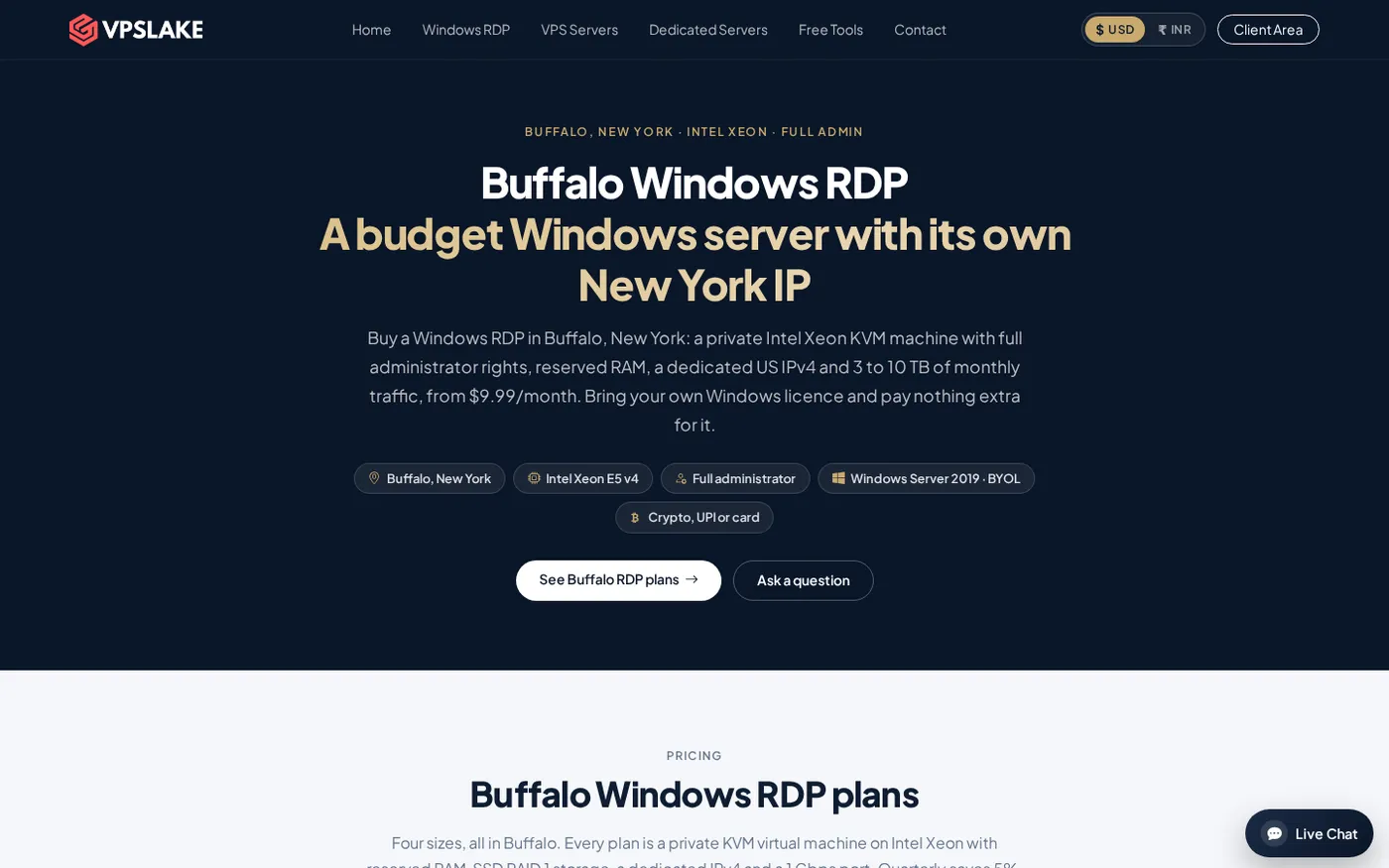
| VPSLake Buffalo Windows RDP 4 GB | One user, one browser profile, MT4/MT5 EA, rater work | $9.99/mo, 3 vCPU, 4 GB reserved RAM, 60 GB SSD, 200 Mbps port, private KVM VM, Full Administrator, and one dedicated US IPv4; choose Server 2019, Windows 10 Pro, or Windows 11 Pro on the order form |
| Windows Server 2019 | Compatibility-first deployments | Familiar server desktop, broad application support, extended support through January 10, 2029 |
| Windows Server 2022 | New deployments and a longer runway | Newer security and platform improvements, extended support through October 15, 2031 |
The VPSLake Windows RDP image is bring-your-own-licence. VPSLake supplies the selected image, but the Windows licence is not included and there is no separate Windows licence surcharge. Confirm that your licence covers the way you plan to use a remote Windows system.
What changed in Windows Server 2022?
Windows Server 2022 builds on Server 2019 rather than changing the basic RDP experience. Its biggest gains are in security, hybrid management, and the application platform, with many aimed at infrastructure teams rather than one browser user.
The changes most likely to matter in a technical environment include:
- Stronger server security options. Server 2022 supports secured-core server capabilities when the underlying hardware and firmware qualify, including UEFI Secure Boot, hardware-based trust, and virtualization-based security. A standard hosted VM may not expose every hardware feature.
- SMB security improvements. Server 2022 adds options such as AES-256 encryption for SMB and improved encrypted RDMA support. These matter to file servers and storage networks, not ordinary browser use inside one RDP session.
- SMB over QUIC in Azure Edition. This Azure Edition capability provides secure file access over QUIC; it is not a reason by itself to select the regular Server 2022 image for a basic RDP.
- Remote Desktop IP Virtualization. Microsoft documents per-session and per-program RDP IP virtualization for Server 2022 after the relevant update. That is useful for specialised multi-session environments, but it does not give a single-user RDP a faster internet connection.
Microsoft’s Windows Server 2022 feature overview describes the full set. These features are valuable when your application uses them, but they are not automatic speed boosts for a remote desktop.
Features RDP users actually notice
Desktop responsiveness
Both images can run browsers, office tools, trading terminals, monitoring tools, and automation applications that support your licensing terms. If a session feels slow, check CPU, free RAM, disk activity, browser tabs, and distance to the server before blaming the OS version.
The Windows 10 RDP vs Windows Server RDP comparison is useful if your real choice is a familiar desktop image versus a server image. Server 2019 and 2022 are both server operating systems; neither turns a small VM into a workstation with unlimited resources.
Browser and application compatibility
The deciding question is whether your application vendor supports Server 2019 or Server 2022. Check the vendor’s requirements for the exact release, .NET version, database driver, browser, and security settings you need.
For a normal RDP connection, the client and server can use either version. Microsoft lists both in its supported RDS configurations and recommends the latest server version for larger infrastructures, a point that matters more for brokers, gateways, and multi-host deployments than for one private VM.
Remote Desktop features
Copy and paste, display scaling, audio settings, and saved connections are primarily controlled by the RDP client and session configuration, not exclusive to Server 2022. Both versions support the usual clipboard, audio, and display options when the client and session policies allow them.
Support lifecycle dates: 2019 vs 2022
| Version | Mainstream support ended | Extended support ends | What that means for a new RDP |
|---|---|---|---|
| Windows Server 2019 | January 10, 2024 | January 10, 2029 | A valid choice for compatibility-led deployments, but the remaining lifecycle is shorter |
| Windows Server 2022 | October 14, 2026 | October 15, 2031 | The better default when you want to keep the same image for longer |
As of October 23, 2026, Server 2022 has moved beyond mainstream support and into its extended-support period. That does not make it unsuitable for RDP; it still has a longer support runway than Server 2019. Microsoft’s Server 2019 lifecycle page and Server 2022 lifecycle page list the dates and editions covered.
The end of mainstream support is a product-support milestone, not an immediate shutdown. Keep the server updated, use strong credentials, and restrict administrative access where possible.
RAM and performance: does Server 2022 need more?
For a single RDP user, the version difference is usually smaller than the workload difference. Windows, browsers, terminals, and background tasks all compete for the same RAM.
Use this sizing guide as a starting point rather than a promise:
| Workload | Sensible starting point | Why |
|---|---|---|
| One light desktop or browser profile | 4 GB RAM | Leaves room for Windows and a small number of applications |
| Several browser profiles or multiple MT4/MT5 terminals | 8 GB RAM | Gives background processes and applications more headroom |
| Many profiles, automation, or several concurrent users | 16 GB or more | Reduces the chance that memory pressure becomes the bottleneck |
VPSLake’s 4 GB Buffalo plan has 3 vCPU, 4 GB reserved RAM, 60 GB SSD storage, 3 TB traffic, and a 200 Mbps port. The 8 GB plan has 4 vCPU, 8 GB reserved RAM, 100 GB SSD storage, 5 TB traffic, and a 300 Mbps port. The plan port is not the same as your local internet speed.
If your software supports both versions, select based on lifecycle and licence fit, then size the VM for the number of processes you will keep open.
Which image should you pick on VPSLake?
The Buffalo order form lets you choose Windows Server 2019, Windows 10 Pro, or Windows 11 Pro. Windows Server 2022 is not listed as one of the current Buffalo image choices in the product brief, so do not assume that a Server 2022 image is available just because it exists in Microsoft’s product line.
Use this decision rule:
- Choose Server 2019 when the application you need is validated for it, you want a traditional server environment, and the 2029 extended-support date is acceptable.
- Choose Windows 10 Pro or Windows 11 Pro when your work needs a desktop-oriented Windows experience and your own licence supports that deployment. The Windows 10 RDP landing page explains that alternative image choice.
- Ask about Server 2022 availability before ordering if a vendor requires it or your project depends on a Server 2022-specific capability. Do not order a different image and assume it is equivalent.
The 4 GB plan suits one browser profile, light desktop applications, an MT4/MT5 EA, or rater work. Move to 8 GB for several profiles or terminals. Every Buffalo plan includes Full Administrator access, a private KVM VM, and one dedicated US IPv4.
How to choose between 2019, 2022, and Windows Pro
Ask four questions before you pay:
- Does the application vendor support the image? This comes first. A newer OS is not useful if a required driver, plugin, or application fails on it.
- How long do you need the deployment? For a new multi-year project, Server 2022’s later lifecycle date is the stronger choice where it is available.
- Do you need server-specific functionality? If you need RDS infrastructure, server roles, or a server-focused environment, use a Windows Server image rather than choosing a Pro image only because its desktop looks familiar.
- How much memory will the workload use? Pick the RAM tier after counting browser profiles, terminals, automation, and background services. Server 2022 does not compensate for an under-sized plan.
For most single-user buyers, Server 2019 remains a reasonable RDP image. If Server 2022 is a hard requirement, confirm the image option first; for a familiar desktop, compare the Windows Pro choices as well.
FAQ
Is Windows Server 2022 better than 2019 for RDP?
It is the better default for a new deployment when you want the longer lifecycle and its newer security or platform features fit your workload. For one ordinary RDP session, both can be responsive when the VM has enough CPU and RAM.
Does Windows Server 2022 use more RAM than 2019?
The exact footprint depends on the installed edition, updates, services, drivers, and applications. Treat the workload as the sizing factor: 4 GB can suit a light single-user session, while several browser profiles or terminals usually need more headroom.
Is Windows Server 2019 still supported?
Yes. Microsoft lists extended support through January 10, 2029, although mainstream support ended January 10, 2024. Keep the system patched and plan a migration before the extended-support date if you need to keep the same deployment long term.
Can I use Windows Server 2019 for a browser or MT4 VPS?
Yes, if the browser, terminal, plugins, and your licence support the server image. VPSLake’s Buffalo 4 GB plan is intended for one browser profile, MT4/MT5 EA work, rater work, and similar single-user workloads.
Does VPSLake include a Windows licence with its RDP?
No. VPSLake supplies the selected Windows image, but Windows is BYOL: you bring a suitable licence. There is no separate Windows licence surcharge in the listed plan price.