
A vps remote desktop can mean either a Windows VPS that already supports Remote Desktop or a Linux VPS with a desktop environment and xrdp added. For most beginners who need Windows software, choose Windows RDP; developers who are comfortable with Linux can save money and get a useful graphical session with XFCE and xrdp.
Two ways to get a desktop on a VPS
A VPS is the virtual machine. The desktop is the operating system and remote-access software running inside that machine. Keeping those layers separate makes the choice easier.
| Option | What you receive | Best fit | Main decision |
|---|---|---|---|
| Windows VPS with RDP | Windows desktop plus Microsoft Remote Desktop support | Windows apps, browser work, MT4/MT5, familiar GUI tasks | Pay for Windows resources and bring the required licence where the provider uses BYOL |
| Linux VPS with XFCE and xrdp | Linux server, lightweight desktop, and an RDP service you configure | Developers, Linux tools, scripts, Docker, terminal-first work | Spend time configuring the GUI and confirm that your applications support Linux |
Microsoft describes Remote Desktop Services as a Windows Server platform for delivering desktops and applications over a network. xrdp fills a similar access role on Linux: it provides a graphical login through Microsoft’s RDP protocol and supports features such as clipboard, audio, and drive redirection.
The difference is not simply “Windows versus Linux.” It is also “ready-made desktop versus assembled desktop.” A Windows RDP VPS is usually usable as soon as the provider finishes deployment. A Linux desktop VPS starts as a server, so you select the desktop packages, install xrdp, create or configure a user session, and secure the exposed service.
Windows VPS with built-in RDP
Windows is the straightforward route when your work depends on Windows applications or you want the least setup. You connect with a Remote Desktop client, sign in, and use a familiar Start menu, file manager, browser, and system settings interface.
It is usually the better fit for:
- Microsoft-only applications and Windows utilities.
- MT4 or MT5 terminals and trading tools that expect Windows.
- Browser profiles, office software, and workflows that you already run on a Windows PC.
- Users who do not want to troubleshoot desktop sessions, Linux packages, or display managers.
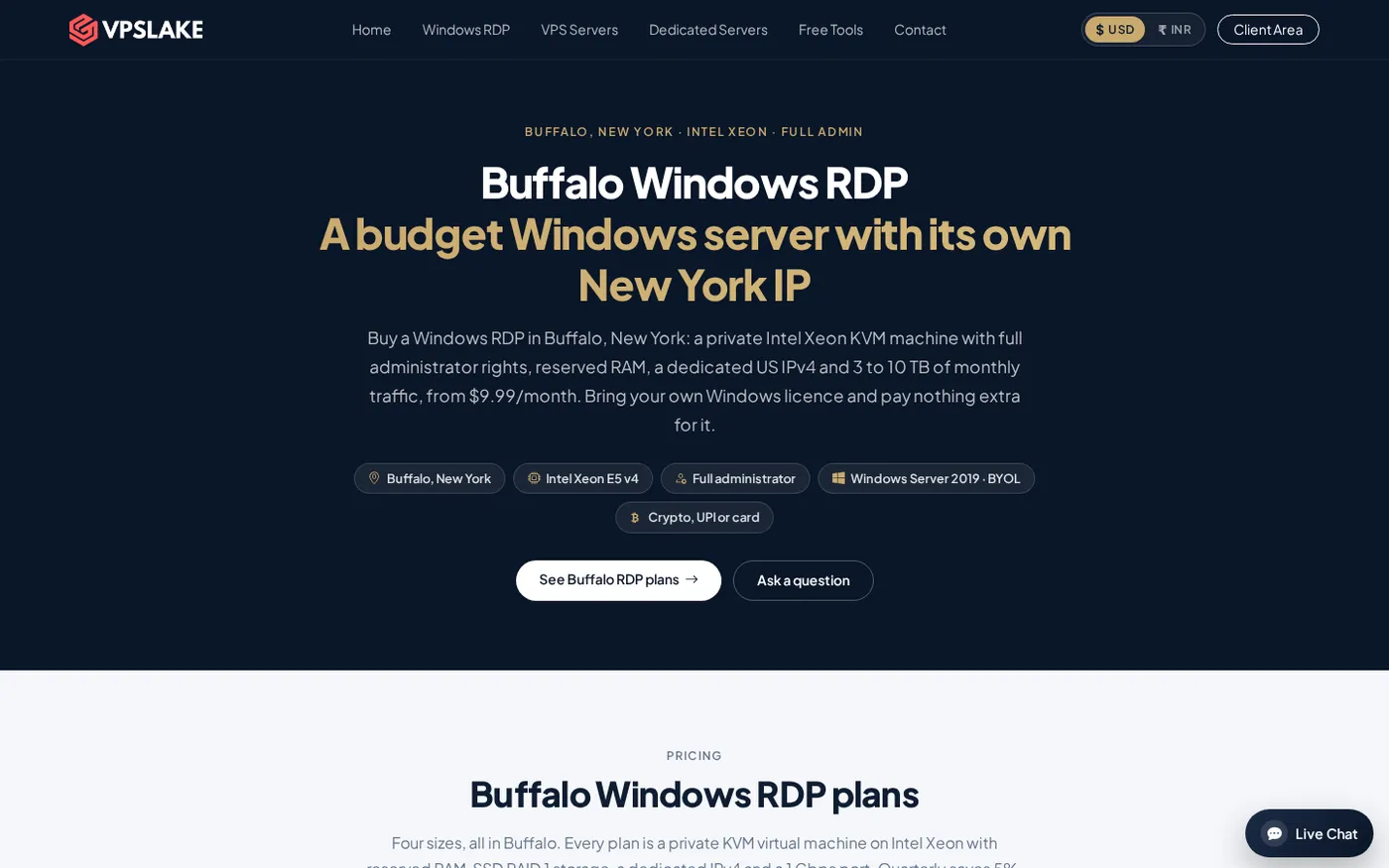
VPSLake’s Buffalo Windows RDP 4 GB plan is $9.99/mo. It includes 4 GB reserved RAM, 3 vCPU, 60 GB SSD storage, a 200 Mbps port, full Administrator access, a private KVM VM, and one dedicated US IPv4 address. The order form offers a Windows Server 2019, Windows 10 Pro, or Windows 11 Pro image.
Windows licensing needs careful attention. VPSLake uses a bring-your-own-licence model: the image is supplied, but the Windows licence is not included and there is no licence surcharge. Treat this as a requirement to resolve before ordering, not as a detail to discover after deployment.
The client area also provides the practical controls you expect from a VPS: browser console access, reinstall, reboot, and password reset. Those controls matter when the desktop is inaccessible or you need to start with a clean image.
For a wider explanation of operating-system trade-offs, see Windows VPS vs Linux VPS. If you need connection instructions after purchase, use our Windows VPS RDP connection walkthrough.
Linux VPS with a desktop and xrdp
Linux normally arrives as a command-line server accessed through SSH. To turn it into a Linux vps desktop, you add three practical pieces: a desktop environment such as XFCE, the xrdp service, and a user session that starts the chosen desktop.
XFCE describes itself as a lightweight desktop environment for UNIX-like systems that aims to be fast and low on system resources. That makes it a sensible choice for a VPS where RAM and CPU should remain available for your application. xrdp then accepts RDP connections from common clients, including Microsoft Remote Desktop clients on Windows, macOS, iOS, and Android.
The Linux route suits you when:
- Your software already runs on Linux or in containers.
- You prefer SSH, package managers, shell scripts, and open-source tools.
- You need a GUI occasionally but do not want a full Windows environment.
- You are comfortable checking services, firewall rules, users, and session startup after changes.
The setup is more involved than selecting a Windows image. You choose a supported distribution, update it, install XFCE and xrdp, confirm the xrdp service is running, and ensure the firewall permits the access method you intend to use. Do not expose a remote desktop service with a weak password or an unnecessary administrator login; use a strong account, updates, and network restrictions appropriate to your situation.
There is also a software trade-off. A Linux desktop can run Linux applications very well, but it does not turn Linux into Windows. Windows-only programs may need a compatible alternative, a compatibility layer, or a separate Windows machine. Check the applications you need before you select the operating system.
RAM and price compared
The cheapest plan is not automatically the cheapest usable desktop. The operating system, desktop environment, remote-access service, browser, and your own application all share the same RAM and CPU.
| VPSLake example | Monthly price | Resources | Practical desktop use |
|---|---|---|---|
| Buffalo Linux VPS 2 GB | $5.99/mo | 2 vCPU, 2 GB reserved RAM, 40 GB SSD, 200 Mbps | Light XFCE session, terminal tools, and small utilities with careful memory use |
| Buffalo Windows RDP 4 GB | $9.99/mo | 3 vCPU, 4 GB reserved RAM, 60 GB SSD, 200 Mbps | A ready Windows desktop for one main user and moderate desktop applications |
| Buffalo Linux VPS 4 GB | $9.99/mo | 3 vCPU, 4 GB reserved RAM, 60 GB SSD, 200 Mbps | More headroom for XFCE plus development tools, services, or containers |
| Buffalo Windows RDP 8 GB | $16.99/mo | 4 vCPU, 8 GB reserved RAM, 100 GB SSD, 300 Mbps | Several browser profiles or heavier Windows multitasking |
The Linux plans include full root access, KVM virtualization, one dedicated IPv4 address, and a choice of Debian 12, Ubuntu 24.04, AlmaLinux 9, or Rocky Linux 9. Windows plans include full Administrator access and the Windows image choices described above. Both are private VPS environments rather than a shared RDP login.
Use the 2 GB Linux plan for a light graphical session only when your workload is modest. If you will keep a browser, IDE, database, Docker services, or automation running at the same time, 4 GB gives you more room. On Windows, 4 GB is a sensible starting point for one ordinary desktop session; move to 8 GB when you know you will run several memory-hungry applications.
Remember the network allowance as well as the port speed. Buffalo’s 4 GB plans have a 200 Mbps port and 3 TB of traffic; 8 GB plans have a 300 Mbps port and 5 TB. After the allowance, the port is throttled rather than billed for overage.
Which option should you choose?
Start with the software, not the operating-system label. This quick decision rule covers most individual buyers:
- Choose Windows RDP if you need Windows-only applications, a familiar desktop, or the fastest path from payment to working session.
- Choose Linux with XFCE and xrdp if your tools are Linux-native and you are comfortable configuring and maintaining the graphical layer.
- Choose Linux for server-first work where the GUI is occasional, such as opening a browser or file manager while your main workload runs in services or containers.
- Choose more RAM when you will run multiple browsers, development tools, databases, or background processes at the same time.
- Confirm licensing before choosing Windows. With a BYOL offer, you must have the right Windows licence for your use.
Windows is the practical recommendation for a first remote desktop because the user experience, software compatibility, and support path are clearer. Linux is the better technical fit when you already think in Linux commands and want the desktop to remain a thin convenience layer around a server.
Security and day-to-day management
Remote access changes the security boundary of your server. Use unique credentials, apply operating-system updates, remove unused accounts, and limit who can reach the remote service. For Linux, review the xrdp service and firewall after installation. For Windows, keep Administrator access controlled and avoid leaving unnecessary remote features enabled.
Microsoft’s Remote Desktop Services overview explains the broader Windows architecture, including gateways, encryption, session management, and planning around CPU, RAM, storage, and network latency. A single personal VPS is simpler than a full RDS deployment, but the same principle applies: size the machine for the applications and concurrent activity, not just the act of connecting.
If copy and paste stops working after you connect, this RDP clipboard troubleshooting guide covers a common Windows-side symptom. For Linux, troubleshoot the desktop session and xrdp logs separately from the underlying VPS network connection.
FAQ
Can I use RDP on a Linux VPS?
Yes. Install a desktop environment such as XFCE and the xrdp server, then configure the user session and firewall. xrdp accepts connections from standard RDP clients, but the Linux desktop needs more initial configuration than a Windows RDP image.
Is a Windows VPS the same as a remote desktop?
Not exactly. A VPS is the virtual machine you rent; Remote Desktop is the protocol and service you use to access its graphical session. A Windows VPS can provide a ready remote desktop, while a Linux VPS needs a desktop environment and RDP service added.
How much RAM does a VPS remote desktop need?
For a light Linux XFCE session, 2 GB can be a starting point if you keep the workload small. A Windows desktop is more comfortable with 4 GB for one ordinary user, while several browsers, terminals, or services justify 8 GB or more.
Is Linux desktop cheaper than Windows RDP?
It can be. For example, VPSLake lists a Buffalo Linux VPS 2 GB at $5.99/mo, while its Windows RDP 4 GB plan is $9.99/mo. Compare usable resources and setup time, not only the monthly price: Linux may save money but requires you to assemble and maintain the desktop.
Do I need a Windows licence for a Windows RDP VPS?
Check the provider’s licensing model before ordering. VPSLake’s Windows images use BYOL: you bring the Windows licence, while the image is supplied without a licence surcharge.