
Buy RDP with admin access only after you confirm that “admin” means a real local Windows Administrator account, not a standard user with a sales label. The five tests below show whether you control the machine, while the private VM, licensing, and security checks help you choose the right plan.
Admin RDP vs user RDP vs shared RDP
RDP describes the connection method. It does not tell you what your account can do after you sign in. A provider can give you an RDP login that opens a desktop while keeping you outside the local Administrators group.
| Access type | What you receive | Can you manage the machine? | Typical ownership model |
|---|---|---|---|
| Standard-user RDP | A Windows desktop with limited permissions | Only approved apps and settings | May be private or shared |
| Shared RDP | One account or session on a host used by multiple customers | Usually no reboot, firewall, service, or system control | Shared host |
| Admin RDP | A local Administrator account on your own Windows VM | Yes, for legitimate software and system administration | Private VM |
Microsoft describes members of the local Administrators group as having complete and unrestricted access to that computer. That is the important distinction: the account must have local administrator privileges on the Windows machine, not merely permission to open an RDP session. Microsoft’s Active Directory security-group documentation explains the privileges associated with the Administrators group.
Five tests that prove you really have admin access
Run these checks after you connect. Use a harmless test name, save your work first, and remove any temporary rule or account when you finish.
1. Check the account’s group membership
Open Command Prompt and run:
whoami /groupsLook for the local Administrators group with an enabled membership. You can also open PowerShell and run:
Get-LocalGroupMember -Group "Administrators"Your account should appear in the result, or the account you were given should be a member of that group. If the command shows only a standard Users membership, you do not have full local admin access.
2. Install a legitimate application that needs elevation
Install a normal application, runtime, or tool that you genuinely need. The installer should be able to request elevation through User Account Control and complete without a provider-side permission error.
This is more useful than checking whether an installer opens. A standard user can sometimes install per-user applications, but a true admin account can approve an elevated, system-wide installation. Uninstall the test application if you do not need it.
3. Change the Windows password
Press Ctrl + Alt + End inside the RDP session and choose Change a password, or use Settings > Accounts > Sign-in options where available. Change it to a strong password that you have not used elsewhere, then reconnect with the new credential.
The test is successful when the change completes and the new password works. If the provider alone must change it, or the option is blocked by a shared-session policy, ask what level of access you actually purchased. VPSLake also documents the normal Windows Server Administrator password change process.
4. Create and remove a temporary firewall rule
Administrator access should let you manage Windows Defender Firewall. To test the control without exposing a real service, create a temporary rule for a port you are not using:
New-NetFirewallRule -DisplayName "RDP admin access test" -Direction Inbound -Protocol TCP -LocalPort 8443 -Action AllowThen remove it immediately:
Remove-NetFirewallRule -DisplayName "RDP admin access test"Do not leave an unused inbound port open. Microsoft’s netsh advfirewall documentation confirms that administrators can configure Windows Firewall rules and policies.
5. Reboot the machine yourself
Save your files and run:
shutdown /r /t 0The RDP connection should close, the VM should restart, and you should be able to reconnect when Windows is ready. Reboot control is a practical final test because it separates a private server from a shared desktop session managed by someone else. If a provider offers a browser console, it can also help you regain access after a normal restart.
What you can do only with admin rights
Full Administrator access matters when your workload needs system-level changes rather than just a remote screen. Common examples include:
- Installing a service, runtime, driver, database, or other application for all users.
- Starting, stopping, and configuring Windows services and scheduled tasks.
- Creating local accounts and deciding which accounts can use Remote Desktop.
- Editing protected registry keys and system-wide configuration.
- Adding, removing, or narrowing firewall rules for software you operate.
- Rebooting, reinstalling, or restoring the machine through the server controls available from your provider.
These capabilities suit a developer testing a Windows stack, a trader running an MT4 or MT5 terminal, a rater who needs a persistent browser workspace, or an operator running one legitimate automation environment. They do not override the terms of a website, advertising platform, broker, or software licence.
Admin access is also different from remote-desktop permission. A non-admin account can be allowed to sign in through RDP, but it still cannot automatically make protected system changes. Conversely, an administrator account should be protected carefully because anyone who obtains its password can control the whole local machine.
Risks of fake admin RDP
The phrase “full admin” is easy to print on a product page. Test the result instead of trusting the label. Warning signs include:
- The supplied login opens a desktop but is absent from the local Administrators group.
- Software installs only inside the user profile and elevated installers fail.
- You cannot change the password, create a local user, or manage services.
- The firewall is controlled by a host policy you cannot inspect or change.
- A reboot requires a support request, or another customer’s sessions remain visible.
- The same Windows environment, IP, or account is clearly used by multiple customers.
A private virtual machine reduces the ambiguity. You have a defined operating-system instance, your own administrator account, and the ability to make local changes without another customer’s session sharing the desktop. It does not make the server automatically secure, so change the initial password, apply Windows updates, use Network Level Authentication where supported, and avoid redirecting local drives unless you need them. Microsoft’s Remote Desktop Services overview covers encrypted RDP access, Gateway options, MFA integration, and security planning.
How VPSLake provides full Administrator access
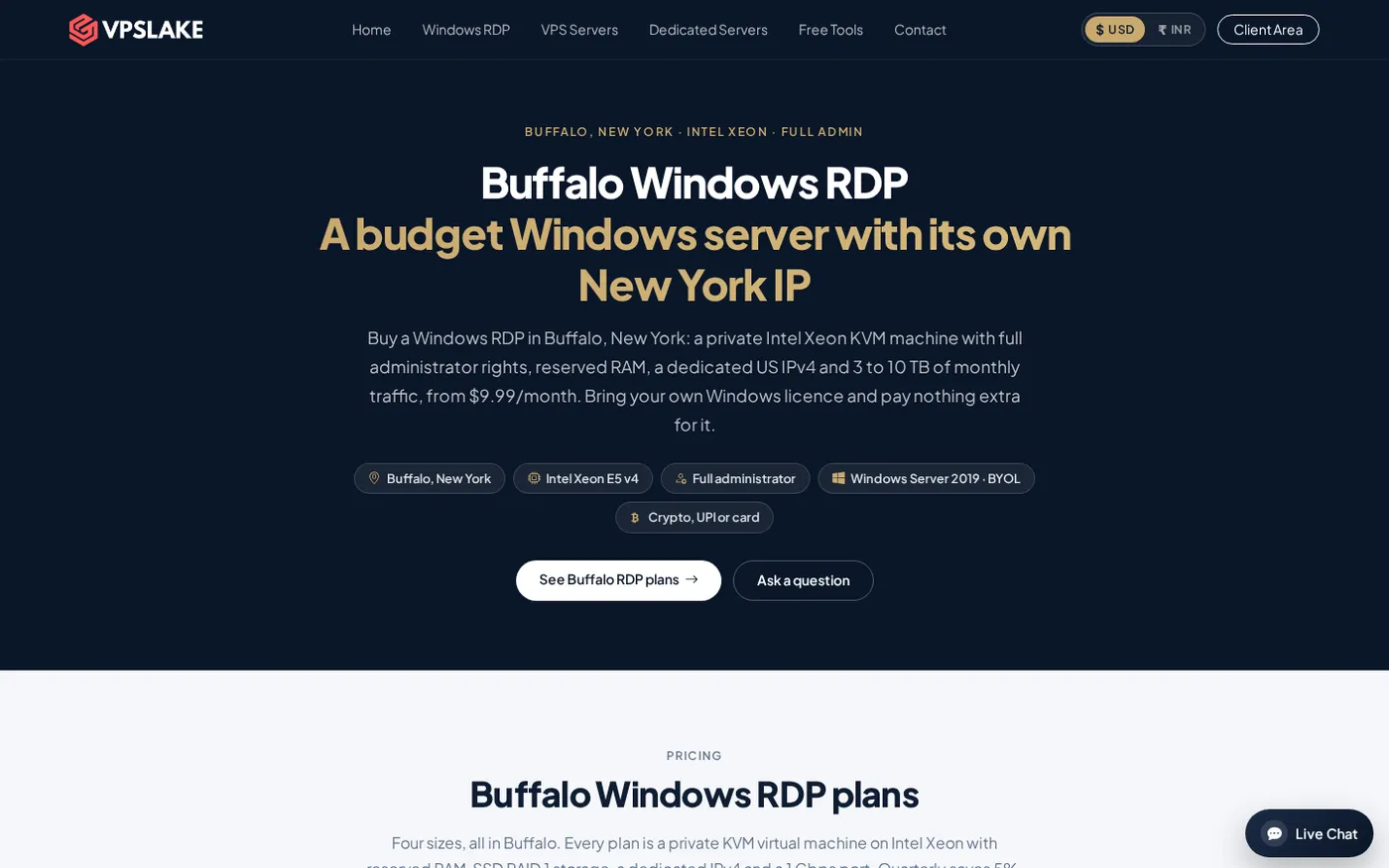
VPSLake’s Buffalo Windows RDP plans are private KVM virtual machines with reserved RAM, rather than shared RDP logins. The 4 GB plan is $9.99/mo and includes 3 vCPU on an Intel Xeon E5-2699 v4, 4 GB reserved RAM, 60 GB SSD in RAID 1, 3 TB traffic on a 200 Mbps port, and one dedicated US IPv4 address.
You choose the image on the order form: Windows Server 2019, Windows 10 Pro, or Windows 11 Pro. Windows is BYOL: VPSLake supplies the image, but your Windows licence is not included and there is no Windows licence surcharge. Check that licensing arrangement before you order rather than treating an image choice as proof that a licence is bundled.
Each Buffalo Windows RDP plan includes Full Administrator access, plus a browser console, reinstall, reboot, and password reset controls in the client area. The 8 GB, 16 GB, and 32 GB plans provide more reserved resources for several browser profiles, multiple terminals, or heavier desktop workloads. Payment is available through crypto, UPI or card gateways, and international card checkout.
How to choose the right admin RDP plan
Start with isolation and permissions, then size the resources around the workload:
| Your workload | Sensible starting point |
|---|---|
| One browser profile, one MT4/MT5 EA, or rater work | Buffalo Windows RDP 4 GB |
| Several anti-detect browser profiles or terminals | Buffalo Windows RDP 8 GB |
| Many profiles or heavier automation | Buffalo Windows RDP 16 GB |
| Team use or heavy multi-profile workloads | Buffalo Windows RDP 32 GB |
Choose Windows Server when you want a server-oriented environment and Windows 10 Pro or Windows 11 Pro when you need a familiar desktop image. Bring your own valid Windows licence, use the lowest plan that leaves room for your applications, and confirm that the dedicated US IPv4 fits your use case.
After purchase, use the browser console if you need a second access path, change the password, install updates, and test the five controls above. If clipboard sharing causes trouble, see VPSLake’s guide to fixing copy and paste in RDP.
FAQ
What does RDP with admin access mean?
It means the Windows account you use over Remote Desktop has local Administrator privileges on the machine. You should be able to install elevated software, manage services and firewall rules, change the password, and reboot the server.
Is admin RDP the same as a shared RDP?
No. Shared RDP normally places multiple customers on the same Windows host or account and limits system control. Admin RDP should give you a private VM and an administrator account for that VM.
How can I verify full Administrator access?
Check that your account appears in the local Administrators group, then test an elevated application installation, password change, temporary firewall rule, and self-service reboot. Remove temporary test changes after you finish.
Does VPSLake include a Windows licence with admin RDP?
No. VPSLake provides a Windows Server 2019, Windows 10 Pro, or Windows 11 Pro image, while you bring your own Windows licence. There is no Windows licence surcharge on the listed plan price.
Can I use admin RDP for MT4 or MT5?
Yes. The Buffalo 4 GB plan is sized for one MT4/MT5 EA, and larger plans provide more reserved CPU and RAM for additional terminals or browser workloads. You remain responsible for the software, broker rules, and any licence required by your tools.