


Cheap VPS for WordPress does not mean choosing the smallest number on a pricing page; it means matching RAM, CPU, storage and administration work to your site. For a small blog, 1–2 GB can be a sensible starting point, while a busy business site or WooCommerce store needs more room for PHP workers, the database, plugins and traffic spikes.
What you need before choosing a WordPress VPS
You need a site estimate, a current backup and a server plan that leaves headroom. Write down your monthly visitors, busiest-hour traffic, number of WordPress sites, largest media directory, active plugins and whether you will run WooCommerce, search, email or another service on the same VPS.
WordPress currently recommends PHP 8.3 or newer, MariaDB 10.11 or newer or MySQL 8.0 or newer, Apache or Nginx, and HTTPS. A VPS gives you control over that stack, but it also means you are responsible for updates, access control, monitoring and backups. Check the official WordPress requirements before ordering.
Do not size the server from total monthly visitors alone. A site with 50,000 cached page views can use fewer resources than a store with 5,000 visits that creates dynamic cart, checkout and account requests.
Step 1: Decide whether a VPS fits your WordPress site
Why this matters: a VPS is useful when you need dedicated virtual resources and server control, not simply because the word “VPS” sounds faster.
Use a VPS when at least one of these is true:
- Your shared plan regularly reaches CPU, memory or entry-process limits.
- You need a custom PHP version, web server configuration, cron schedule or database setting.
- You run several sites or applications and want their resources in one private environment.
- You need root access, a dedicated IPv4 address or the ability to install your own security and monitoring tools.
Success looks like this: you can name the control you need from a VPS and the maintenance tasks you are willing to own. If you cannot, the cheapest plan may not be the cheapest overall choice for you.
Step 2: Choose RAM and CPU by workload
Why this matters: RAM is usually the first constraint when WordPress, PHP, MySQL or MariaDB, the web server and a cache run together. CPU affects uncached PHP requests, image processing, imports and simultaneous admin activity.
Use this as a starting point, then leave room for the operating system and short bursts:
| WordPress workload | Sensible starting size | What to watch |
|---|---|---|
| One lean blog with light traffic | 1 GB RAM, 1 vCPU | Plugin count, image sizes and swap use |
| One business site or several light sites | 2 GB RAM, 2 vCPU | PHP worker memory and database usage |
| WooCommerce, memberships or heavier plugins | 4 GB RAM, 3 vCPU | Checkout requests, cron jobs and object cache |
| Several sites, larger catalogue or busy media use | 8 GB RAM, 4 vCPU | PHP concurrency, database size and backups |
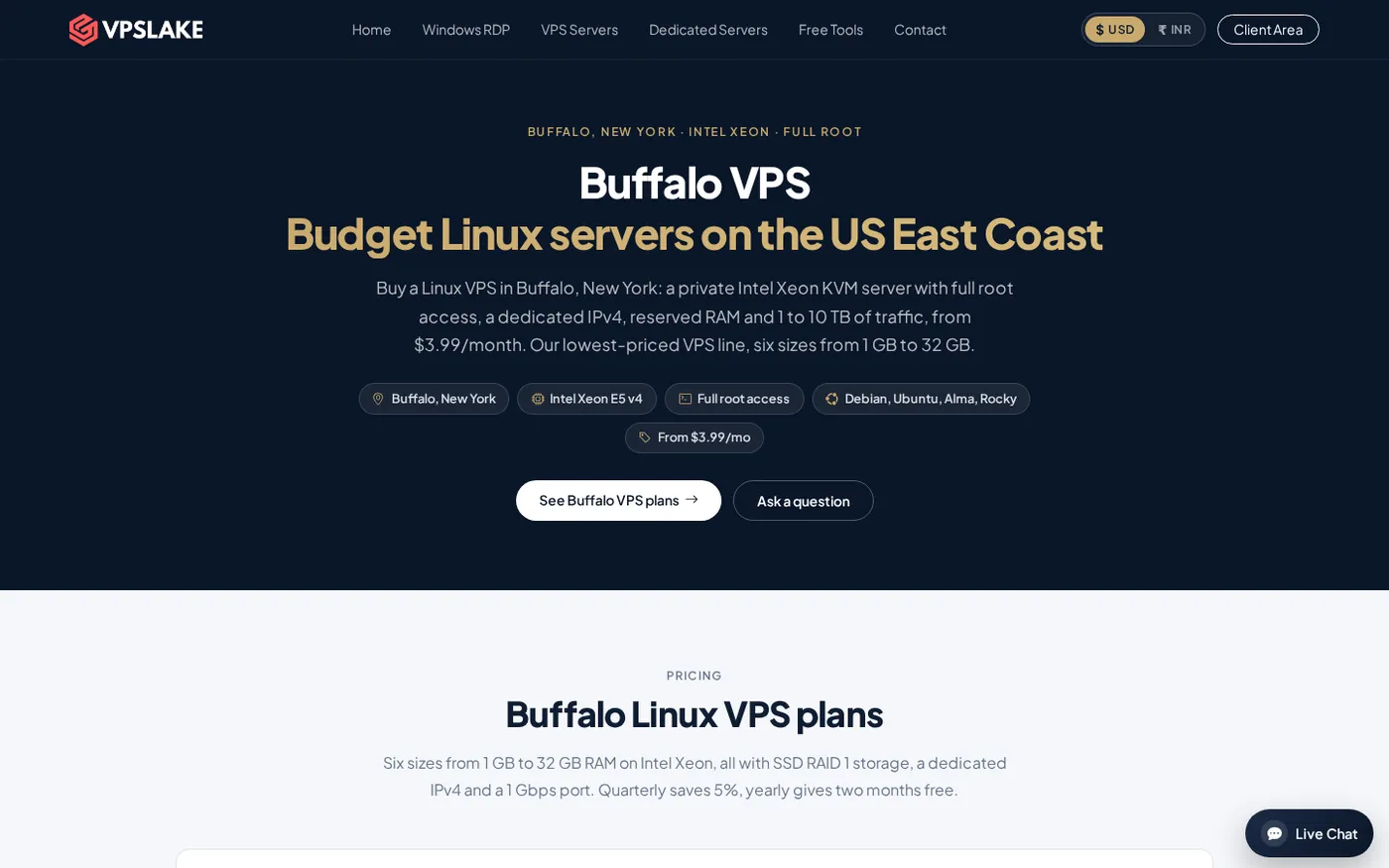
The Buffalo Linux plans provide a straightforward ladder: 1 GB at $3.99/mo, 2 GB at $5.99/mo, 4 GB at $9.99/mo and 8 GB at $16.99/mo. Each includes reserved RAM, KVM virtualization, full root access, a dedicated IPv4 address and SSD RAID 1 storage. The 2 GB plan is a practical first choice for one small-to-medium WordPress site; choose 4 GB when WooCommerce, several plugins or multiple sites will share the machine.
Leave memory for the operating system, database, security tools and traffic bursts. Check the result after launch with:
free -h
df -h
uptime
Success looks like stable free memory during a backup and a traffic burst, enough disk space for media and logs, and no sustained swap activity. If those checks fail, resize before adding more plugins.
Step 3: Pick a practical WordPress stack
Why this matters: a VPS is only as useful as the software stack you can keep updated.
For a lean deployment, use a supported Linux distribution, Nginx or Apache, a current PHP release, MariaDB or MySQL, and HTTPS. Nginx with PHP-FPM is a common low-overhead choice; Apache can be easier when your existing site depends on .htaccess rules. Choose the server you understand and document every change.
Keep the first deployment small:
- Create one non-root administrator for routine SSH work and restrict root login after testing.
- Point DNS to the dedicated IPv4 address only after the web server answers on the temporary hostname or test domain.
- Install WordPress with a separate database and database user; do not reuse credentials across sites.
- Enable HTTPS and confirm that both the home page and WordPress admin use the HTTPS URL.
- Add only the plugins and themes you need, then update them before opening the site to the public.
Success looks like a clean https:// site, working permalinks, successful media uploads, scheduled tasks that run, and a WordPress Site Health screen without critical errors.
Step 4: Add caching, CDN and backups
Why this matters: caching reduces repeated PHP and database work, while backups protect you from mistakes, failed updates and damaged data.
Start with page caching for public pages. Do not cache cart, checkout, account or other personalized pages on an online store. Add browser caching and compressed images, then use a CDN when visitors are spread across regions or your media files create a large share of requests. The WordPress performance handbook explains how caching, compression and content offloading work together.
Back up both parts of the site:
- The database, which contains posts, settings, orders, comments and plugin data.
- The files, including WordPress core, themes, plugins, uploads and configuration.
Keep several recent copies outside the VPS and test at least one restore on a staging site. Run a backup before WordPress, PHP, theme or plugin changes. A backup that has never been restored is only an assumption, not a recovery plan.
Success looks like a cache hit on public pages, uncached checkout behaviour where required, an off-server backup, and a documented restore path that you have actually tested.
Step 5: Plan the move from shared hosting
Why this matters: most WordPress moves fail at the URL, database or DNS handoff rather than at the file copy itself.
The safe sequence is:
- Lower the DNS TTL a day before the move if your DNS provider allows it.
- Export the database and copy the complete WordPress directory, including
wp-content/uploadsandwp-config.php. - Create the new database and user, import the SQL dump, and update
wp-config.phpwith the new credentials. - Test the site on a temporary hostname or local hosts-file entry. Check login, permalinks, media, forms, search and every WooCommerce checkout path.
- Freeze content briefly, take one final database export, copy changes, then switch DNS.
- Keep the old hosting account available until DNS has propagated and your logs show normal traffic on the VPS.
The WordPress migration process covers the files, database and URL settings involved. You can also read our guide on moving from shared hosting to a VPS safely for a buyer-focused checklist.
Success looks like the site loading over HTTPS from the new IP, no mixed-content warnings, no redirect loop, and new orders or form submissions appearing in the new database.
Step 6: Verify the server before going live
Why this matters: performance problems are easier to fix before search engines, customers and payment flows depend on the new address.
Check the following from an SSH session and a normal browser:
curl -I https://example.com
systemctl --failed
sudo ss -tulpn
Replace example.com with your domain. Confirm that the response uses HTTPS, no unexpected systemd units are failing, and only the services you intended are listening. In WordPress, review Site Health, update the permalink settings once, and test a logged-out page in a private browser window so you see the cached public version.
Review the current Buffalo Linux VPS plans before you order. The 2 GB plan gives a small WordPress site a low-cost starting point; 4 GB is the more comfortable choice when the database, WooCommerce and several plugins need to share the server. If your measured usage later grows, move up based on memory, CPU, disk and traffic data instead of guessing.
For a broader purchase checklist, see our guide on how to choose a VPS provider.
How to choose the cheapest plan without undersizing
Use the lowest plan that meets these four tests:
- Memory: the site stays out of swap during normal traffic, backups and updates.
- CPU: uncached requests, imports and scheduled jobs finish without a sustained load queue.
- Storage: WordPress files, media, database dumps and logs fit with meaningful free space.
- Administration: you have time and skill to patch, secure, monitor and restore the server.
Extra headroom costs less than repeated migrations caused by a server sized only for an empty WordPress install.
FAQ
Can WordPress run on a 1 GB VPS?
Yes, a lean single blog can start on 1 GB when the stack is light and public pages are cached. Leave memory for the operating system and database, and move to 2 GB if updates, backups or plugins regularly push the server into swap.
Is 2 GB RAM enough for WooCommerce?
It can be enough for a small store with a controlled plugin set and good caching for public pages. Choose 4 GB when checkout, product search, scheduled jobs and several extensions must run together, then validate the decision with memory and PHP-worker usage.
Is a cheap VPS better than shared WordPress hosting?
A VPS gives you more control and reserved memory, but you also manage the server. It is a better fit when you need root access, custom software or more predictable resources; managed hosting is simpler when you do not want operating-system maintenance.
What Linux distribution should I use for WordPress?
Choose a supported distribution that your web stack and administration tools document clearly. Keep it updated and use one consistent deployment method; the ability to maintain the server matters more than choosing a fashionable distribution.
How much storage does a WordPress VPS need?
Twenty gigabytes can cover a small install, but media, backups, logs and databases grow over time. Measure your current WordPress directory, database dump and backup retention, then choose enough space to keep several backups without filling the root filesystem.