
AdsPower RDP sizing comes down to how many profiles you keep open at the same time, not how many profiles exist in your account. For most light workloads, plan about 4 GB for up to 5 active profiles, 8 GB for around 10, and 16–32 GB for 20 or more depending on tabs, extensions, and automation.
What you need before sizing
Track three things: profiles open concurrently, tabs and extensions per profile, and whether AdsPower automation runs in the background. Closed profiles use storage; open profiles use RAM and CPU.
AdsPower’s official minimum is 2 GB RAM, 2 GB of free disk space, and a dual-core CPU. That is a starting requirement, not a sensible target for several active Chromium-based profiles. AdsPower documents 32 GB RAM for 20 profiles opened at once, while cache size, extensions, open URLs, and network conditions change the result. See the official AdsPower system requirements before installing a new browser version.
For an RDP, leave headroom for Windows, AdsPower itself, your RDP session, security tools, and temporary spikes. A server that sits at 95% memory use after startup has no room for a heavier page or a simultaneous profile launch.
Step 1: Count the profiles open at once
Why this matters: ten saved profiles do not consume the same resources as ten profiles running at once.
Write down your busiest normal session, not your total profile count. If you normally open four profiles for routine work but occasionally open ten for a campaign review, size for ten or schedule the larger session separately.
Use this practical starting table. The ranges assume ordinary business websites, a limited number of extensions, and profiles that are actively open. They are planning estimates, not a guarantee for every site or workflow.
| Windows RDP RAM | Profiles open at once | Best fit | VPSLake plan |
|---|---|---|---|
| 4 GB | 3–6 | One operator with a few light profiles | $9.99/mo |
| 8 GB | 8–15 | Around 10 profiles, or several browser windows | $16.99/mo |
| 16 GB | 12–20 | Larger sessions, heavier pages, or background automation | $29.99/mo |
| 32 GB | 20+ | Heavy multi-profile work or multiple operators | $54.99/mo |
The 4 GB plan is the sensible starting point for five light profiles. Choose 8 GB when ten profiles must remain responsive together. For twenty open profiles, 32 GB follows AdsPower’s guidance; 16 GB can suit lighter pages after you verify the workload in Task Manager.
Success looks like: one busiest-session profile count for planning.
Step 2: Reserve RAM for Windows and AdsPower
Why this matters: the number printed on a plan is total VM memory, not memory available to browser profiles alone.
Windows uses part of the allocation before you open a profile. AdsPower needs memory for its desktop application, local data, browser processes, and profile management.
Use the table as a decision aid rather than dividing total RAM by a fixed number. A 4 GB VM is not four separate 1 GB portions: reserve a baseline for the operating system, then watch what remains while your real pages are open.
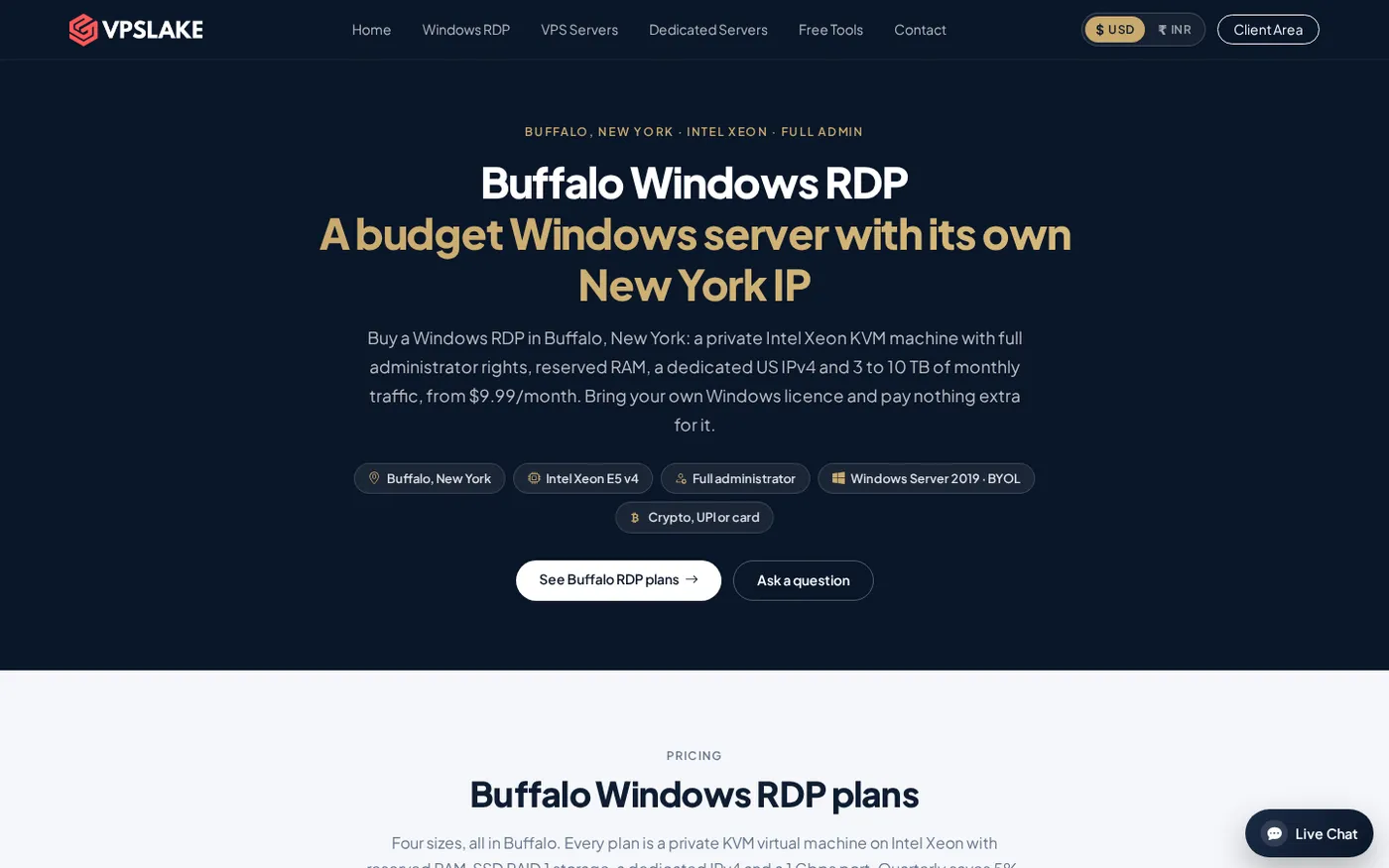
VPSLake’s Buffalo Windows RDP plans use reserved RAM in a private KVM VM. The 4 GB plan has 3 vCPU, the 8 GB plan has 4 vCPU, the 16 GB plan has 6 vCPU, and the 32 GB plan has 8 vCPU. Each includes full Administrator access and a dedicated US IPv4. The order form provides a Windows Server 2019, Windows 10 Pro, or Windows 11 Pro image; you bring your own Windows licence.
Success looks like: free memory remains after Windows and AdsPower start.
Step 3: Apply settings that reduce memory use
Why this matters: browser content and extensions can move a profile from a light session to a heavy one.
In AdsPower, review the settings that affect what opens and what stays active. AdsPower’s global settings documentation includes options to disable the proxy detection page at startup, disable video loading, limit large images, and delete selected cache data when a profile opens.
Use this sequence:
- Open only the profiles needed for the current task. Keep inactive profiles closed.
- Remove extensions that are not required for that profile. Each extension can add background work or another browser process.
- Disable automatic video loading when video is not part of the job.
- Set a sensible image-size limit if the workflow does not need large images.
- Avoid restoring a large collection of old tabs on every launch.
- Close completed profiles instead of leaving them minimised for the entire day.
Success looks like: the same workload uses less memory without breaking required pages.
Do not change fingerprint values merely to save RAM. Browser identity settings, proxy configuration, and account policies are separate from server sizing. Use AdsPower’s defaults unless your legitimate workflow requires a documented change, and follow each platform’s rules.
Step 4: Check CPU, disk, and network too
Why this matters: enough RAM cannot compensate for a CPU-bound launch, slow storage, or a workload that constantly downloads large pages.
CPU usage rises when several profiles launch together, pages run JavaScript, or automation performs actions across multiple windows. If memory is available but launches are slow and CPU stays near the top of Task Manager, choose the next plan with more vCPU instead of focusing only on RAM.
Disk performance affects profile startup, cache access, and updates. Keep free space available for Windows updates, browser versions, logs, and profile data. AdsPower’s minimum free-space requirement is 2 GB, but that is not a useful operating target for a working RDP with several profiles.
Network quality affects page load and proxy checks. A Buffalo plan includes a dedicated US IPv4, private KVM virtualisation, SSD storage, and plan-specific port speeds. The 4 GB and 8 GB plans use 200 Mbps and 300 Mbps ports respectively; the 16 GB plan uses 500 Mbps, and the 32 GB plan uses 1 Gbps. Choose based on your workload.
Success looks like: CPU, disk, and network are not bottlenecks during a normal launch.
If you also run MT4 or MT5, compare the browser workload with the guidance in MT4 and MT5 VPS requirements. Trading terminals, browser profiles, and automation compete for the same reserved resources.
Step 5: Choose the RDP plan for 5, 10, or 20 profiles
Why this matters: matching the plan to your busiest session prevents both unnecessary cost and avoidable resource pressure.
For 5 profiles
Start with the Buffalo Windows RDP 4 GB plan at $9.99/mo when the profiles use ordinary pages and a small number of extensions. It has 3 vCPU, 60 GB SSD storage, 3 TB traffic, and 200 Mbps port capacity. If the profiles run long automations, open many tabs, or load heavy dashboards together, move to 8 GB.
For 10 profiles
Choose the Buffalo Windows RDP 8 GB plan at $16.99/mo. It provides 4 vCPU, 100 GB SSD storage, 5 TB traffic, and a 300 Mbps port. Use it when ten profiles need to stay open together.
For 20 profiles
Use 16 GB at $29.99/mo for lighter profiles after testing, or choose 32 GB at $54.99/mo when twenty profiles open together, use several extensions, or run background automation. The 16 GB plan has 6 vCPU and the 32 GB plan has 8 vCPU, so the larger plan also gives more CPU headroom during batch launches.
All four plans provide Full Administrator access, a private KVM VM, a dedicated US IPv4, and client-area controls for console access, reinstall, and reboot. Payment is available by crypto, UPI/card, or international card. Windows is BYOL: VPSLake supplies the selected image and you bring the licence, with no Windows licence surcharge.
Success looks like: the chosen plan handles your busiest session with room to spare.
Verify your choice in Task Manager
After connecting, install AdsPower, open the profiles you actually use, and reproduce the busiest normal session. Open Task Manager with Ctrl+Shift+Esc and watch the Memory, CPU, and Disk columns for several minutes, including while profiles launch and load their first pages.
Your sizing test passes when memory remains below the point where Windows starts relying heavily on paging, CPU has room after the initial launch, and the browser remains responsive while you work. Repeat the test with your normal extensions and tabs; an empty profile is not a meaningful benchmark.
For setup help after purchase, see How to Set Up a Windows VPS After Purchase. If clipboard transfer is part of your workflow, this RDP copy-and-paste troubleshooting guide covers the common Windows settings.
Troubleshooting AdsPower RDP memory use
Profiles open slowly: check CPU and disk alongside memory. Launching many profiles at once creates a short burst; stagger launches and test again.
Memory keeps rising: close unused profiles, reduce open tabs, review extensions, and clear unnecessary cache according to AdsPower’s settings. Then repeat the same workload test.
Pages are blank or incomplete: check the proxy and network first. Do not assume that adding RAM will fix a proxy or site-loading problem.
The RDP feels responsive until automation starts: automation adds CPU, browser, and page activity. Test the automation workload itself, then move up one plan if CPU or memory stays near its limit.
FAQ
How much RAM does AdsPower need for one profile?
AdsPower lists 2 GB of RAM as a minimum for the application, but that is not a recommended whole-server allocation for a Windows RDP with a browser profile. For one light profile, a 4 GB Windows RDP leaves more practical room for Windows, AdsPower, and normal browsing.
How many AdsPower profiles can run on 4 GB RAM?
Plan for roughly 3–6 light profiles open at once on 4 GB, then verify with your real tabs and extensions. Heavy pages, video, large extensions, or automation can reduce that range.
Is 8 GB RAM enough for 10 AdsPower profiles?
The 8 GB plan is the sensible starting point for around 10 active profiles when the pages and extensions are moderate. Open all ten during a Task Manager test; if memory or CPU remains close to its limit, choose 16 GB for more headroom.
How much RAM is needed for 20 AdsPower profiles?
AdsPower recommends at least 32 GB for 20 profiles opened simultaneously, while lighter workloads may fit on 16 GB after testing. Choose 32 GB when profiles are heavy, use many extensions, or run automation in the background.
Does closing an AdsPower profile free RAM?
Yes. A saved but closed profile mainly uses disk space, while an open profile runs browser processes and consumes RAM and CPU. Closing profiles you are not using is one of the simplest ways to reduce the active workload.