
To buy vps with usdt, pay a dollar-priced hosting invoice from a crypto wallet or exchange instead of using a card or bank account. This walkthrough shows how to choose a VPS or Windows RDP, select USDT on the right network, calculate the amount to send, and handle the payment until your server is ready.
What you need before you start
Prepare these items before opening the order page:
- A VPSLake account with an email address you can access. Your invoice, login details, and renewal reminders are sent there.
- Enough USDT for the invoice plus the blockchain network fee charged by your wallet or exchange.
- A wallet or exchange that supports the same USDT network shown by Cryptomus at checkout.
- A basic idea of what you will run. Linux is a good fit for services, containers, bots, and web applications. Windows RDP is the better fit for a graphical desktop, Windows software, MT4/MT5, or browser-based work.
For a Windows desktop, the Buffalo Windows RDP 4 GB plan is $9.99/mo. It includes a private KVM VM, reserved RAM, full Administrator access, a dedicated US IPv4 address, and a Windows image. Windows is BYOL: you bring your own Windows licence, while VPSLake supplies the image without a licence surcharge.
Why pay for a VPS with USDT?
USDT is useful when your hosting bill is priced in US dollars and your funds are already in crypto. The invoice is converted into the USDT amount shown at checkout, so you do not need to sell coins for fiat first. The server and resources do not change because you paid with crypto.
For a broader provider comparison, see Best VPS Hosting That Accepts Bitcoin and Crypto in 2026. This article focuses on completing one USDT payment correctly.
TRC20 vs BEP20 vs ERC20
USDT is available on more than one blockchain. TRC20 means USDT on Tron, BEP20 means USDT on BNB Smart Chain, and ERC20 means USDT on Ethereum. These are not interchangeable labels: the network selected at checkout must match the network used when you withdraw from your wallet or exchange.
Tether lists its supported protocols and contract information on its official supported-protocols page. The payment page is still the final authority for which network is available for your specific invoice.
| Network | Choose it when | Fee and speed guidance | Main check |
|---|---|---|---|
| TRC20 | Your wallet holds USDT on Tron | Often a practical choice for a small hosting invoice; confirm the live fee in your wallet | The address and network must say TRC20/Tron |
| BEP20 | Your balance is on BNB Smart Chain | Fees and confirmation time depend on current chain and wallet conditions | Select BEP20/BNB Smart Chain on both sides |
| ERC20 | Your USDT is on Ethereum | Ethereum gas can vary, so review the current fee before sending | Select ERC20/Ethereum on both sides |
Network fees change, and an exchange may charge an additional withdrawal fee. Use the network your balance supports and check the final send amount before confirming.
Step 1: Choose the VPS or RDP plan
Why: picking the correct operating system and size prevents a payment for the wrong workload.
Exact actions:
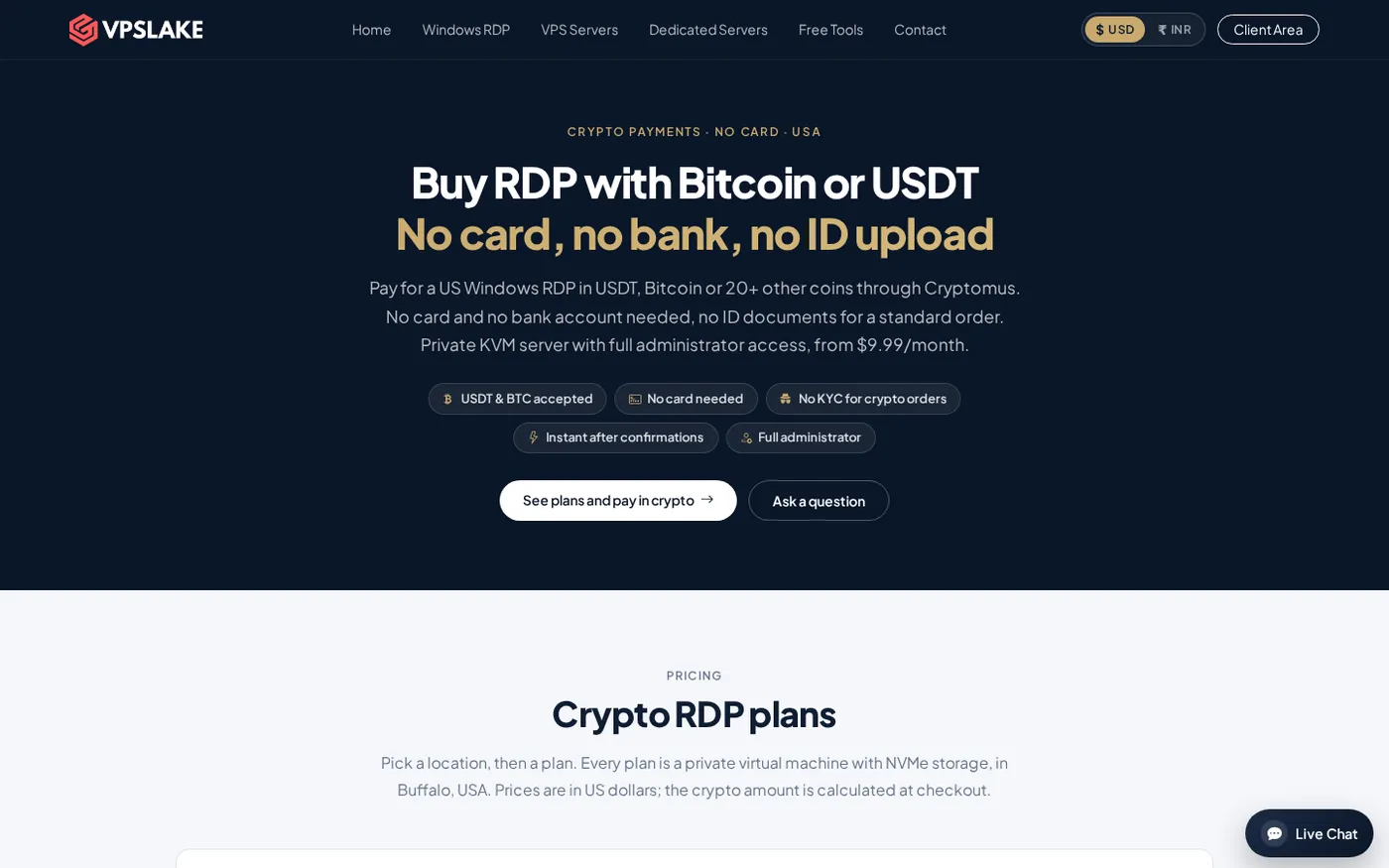
- Open the VPSLake crypto payment page if you need Windows RDP, then choose the Buffalo Windows RDP plans.
- Choose Buffalo, New York, which is the available VPSLake location for these plans.
- Select a size. The 4 GB Windows RDP suits one browser profile, a trading terminal, or light automation; choose more RAM for several profiles or heavier desktop use.
- Click the order link for the plan and review the monthly price and traffic allowance before continuing.
Success looks like: the order form shows the Buffalo plan, the operating system choices, the billing cycle, and the correct USD price.
Step 2: Complete the order form
Why: the email and order details connect the crypto invoice to the server that will be provisioned.
Exact actions:
- Select the image you need. The Buffalo order form offers Windows Server 2019, Windows 10 Pro, or Windows 11 Pro images. Bring your own Windows licence.
- Select monthly, quarterly, or yearly billing. Quarterly billing saves 5%; yearly billing gives two months free.
- Enter an email address you control and complete the required account and order fields.
- Check the plan summary, billing period, and total. Do not transfer funds yet; the exact crypto amount is created on the next payment page.
Success looks like: VPSLake creates the order and offers available payment methods, including Cryptomus.
Step 3: Select Cryptomus and USDT
Why: Cryptomus generates the invoice, network-specific address, QR code, and exact amount for this order.
Exact actions:
- Select Cryptomus as the payment method and continue to the crypto payment page.
- Select USDT as the coin.
- Choose TRC20, BEP20, or another USDT network only if it is listed on that invoice.
- Read the invoice amount, destination address, payment window, and selected network.
- Copy the address using the copy control or scan the QR code. Avoid typing a long blockchain address by hand.
Success looks like: the page shows one USDT amount, one deposit address or QR code, and one clearly identified network. Save the invoice number or keep the payment page open until the transfer is visible.
Step 4: Send the exact amount
Why: an underpayment can leave the invoice unpaid even when the transaction reaches the correct address.
Exact actions:
- Open your wallet or exchange withdrawal screen.
- Select the same network shown on the Cryptomus invoice. For example, select Tron when the invoice says USDT TRC20.
- Paste the destination address and compare its first and last characters with the payment page.
- Enter the exact invoice amount. If the invoice says 10.03 USDT, the merchant address must receive 10.03 USDT.
- Check how your wallet displays its network fee or exchange withdrawal fee. Your available balance must cover the invoice amount plus that fee; the fee must not be deducted from the invoice amount.
- Confirm the transfer and keep its transaction hash.
Success looks like: the wallet reports a submitted transaction and the Cryptomus page changes from waiting for payment to a processing or confirmation state.
For example, if the invoice is 10.03 USDT and your wallet charges 0.20 USDT separately, you need at least 10.23 USDT available. If it subtracts the fee from the entered amount, increase the withdrawal total so the destination still receives 10.03 USDT.
Step 5: Wait for confirmation and server access
Why: provisioning starts after the payment processor sees the required blockchain confirmation, not merely when you press Send.
Exact actions:
- Watch the payment status and your wallet transaction. Do not send a second payment while the first is confirming.
- Wait for Cryptomus to mark the invoice paid. TRC20 payments commonly confirm within a few minutes, while Ethereum-based payments can vary with network conditions.
- Check your email and the client area for the server IP, username, and password.
- Connect using RDP for a Windows plan or SSH for a Linux VPS. Change the initial password before starting your workload.
Success looks like: the invoice is paid, the server is provisioned automatically, and the login details are available by email and in the client area.
Verify the payment and server
Do this short check before installing software:
- Confirm that the invoice is marked paid rather than merely processing.
- Confirm that the plan, location, operating system image, and billing period match your order.
- Confirm that the IP address in the client area is the one supplied for the new server.
- On Windows, sign in through Remote Desktop and confirm Administrator access. On Linux, sign in through SSH and run
hostnamectl. - Store the invoice number and transaction hash with your hosting records. You may need both if you contact support about a payment.
For the next setup steps, use How to Set Up a Windows VPS After Purchase.
Cryptomus documents confirm_check as the state where a transaction has been seen but the required network confirmations are still pending. Its payment-status documentation explains the difference between processing, paid, paid-over, and wrong-amount states.
Troubleshooting USDT payment problems
The payment is underpaid. Check whether your exchange deducted its withdrawal fee. Do not send a second full invoice. Keep the invoice number, transaction hash, amount received, and selected network, then contact VPSLake support.
The payment uses the wrong network. Stop sending more funds. Record the selected network, destination address, transaction hash, and invoice number, then contact support for a payment review.
The payment window expired. Do not reuse an old address or amount. Contact support with the transaction details before making another transfer.
The wallet says sent but checkout is still waiting. Check the transaction and confirm the amount, address, and network. The processor may still be waiting for confirmations; if it is confirmed but the invoice is unchanged, send support the hash rather than paying again.
Refunds on crypto payments
Read the VPSLake refund policy before ordering. Crypto payments are final once confirmed; where the policy allows a refund, it is returned in the same coin and network at the amount received. Keep the original wallet and network details.
FAQ
Can I buy a VPS with USDT TRC20?
Yes. Choose Cryptomus at checkout, select USDT, and select TRC20 if it appears on the invoice. Send the exact amount to the displayed TRC20 address, with the wallet fee covered separately.
Can I buy a VPS with USDT BEP20?
Yes, when BEP20 is offered for the invoice. Select BNB Smart Chain or BEP20 in both the payment page and your wallet, then compare the address and amount before confirming the withdrawal.
How long does it take to buy a VPS with USDT?
The payment needs blockchain confirmation before automatic provisioning starts. TRC20 commonly completes within a few minutes, while timing for ERC20 and BEP20 depends on current network conditions and the required confirmations.
What happens if I send less USDT than the invoice?
The invoice can remain unpaid and the server will not be provisioned automatically. Do not send another full payment; save the transaction hash and invoice number and ask VPSLake support to review the underpaid transaction.
Can I renew the VPS with USDT?
Yes. Renewal invoices can be paid through Cryptomus in the same way as the first order. Crypto renewals are not automatic, so watch for the renewal invoice and pay it before the due date.
DONE buy-vps-with-usdt words=1649