
Run python script 24/7 on a laptop and the process stops when the laptop sleeps, loses power, or loses its network connection. A small Linux VPS gives your script a stable home, a public IP, and a service manager that can start it after boot and restart it after an unexpected failure.
Why a VPS is better than a laptop
A laptop is designed for interactive use. Its lid may be closed, the operating system may install updates, Wi-Fi may change, and the machine can reboot while you are away. Keeping a terminal open does not solve those problems.
A VPS runs in a data center and is administered remotely over SSH. You do not need to keep your own computer powered on, and you can manage the process from any device. The VPS still needs sensible code, monitoring, and maintenance, but the hosting model is much better suited to a long-running worker, API poller, Telegram or Discord bot, webhook receiver, or small automation job.
| Option | Closing your computer | Start after a host reboot | Best use |
|---|---|---|---|
| Laptop | Usually stops or sleeps | No | Development and testing |
| Free hosting tier | Depends on its policy and quota | Often requires configuration | Experiments and short jobs |
| Linux VPS | Keeps running independently | Yes, with systemd | Long-running scripts and bots |
The key distinction is process supervision. nohup and screen can detach a process from your SSH session, but systemd can also manage its boot-time startup, status, logs, and restart policy.
What you need before you start
You need a Linux VPS with root or sudo access, an SSH client, your Python source code, and a dependency file if the script uses third-party packages. Ubuntu 24.04, Debian 12, AlmaLinux 9, and Rocky Linux 9 are all available on VPSLake’s Buffalo Linux VPS plans.
For a small script, the plan size is usually determined by the interpreter, libraries, and any other services sharing the machine—not by the number of lines in the script. Use this as a practical starting point:
| Workload | Starting point | Why |
|---|---|---|
| One small worker or tiny bot | 1 GB RAM | Suitable for a light process with few dependencies |
| API bot, scheduler, or several small workers | 2 GB RAM | Leaves more room for libraries and operating-system services |
| Data processing, Docker, or a database beside Python | 4 GB RAM or more | Gives the application and supporting services more working space |
VPSLake’s Buffalo Linux VPS starts at $3.99/mo for 1 GB RAM, 1 vCPU, 20 GB SSD storage, 1 TB traffic, a dedicated IPv4 address, and full root access. If you are still comparing providers, use this VPS provider checklist to check access, storage, traffic, location, and payment options before ordering. Readers buying from India can also compare the best cheap VPS providers for India before choosing a plan.
Step 1: Put the application in a fixed directory
Why: a service should use predictable absolute paths instead of depending on the directory from which you happened to launch it.
Connect to the VPS over SSH, create a dedicated service account, and place the application in /opt/mybot:
sudo adduser --system --group --home /opt/mybot mybot
sudo mkdir -p /opt/mybot
sudo chown -R mybot:mybot /opt/mybot
Copy your files into that directory. A simple layout might be:
/opt/mybot/
├── run.py
├── requirements.txt
└── .venv/
If the script reads or writes files, use paths relative to a known working directory or define absolute paths in your configuration. Do not keep API keys directly in a file that you plan to publish or commit.
Success looks like run.py and requirements.txt being readable by mybot, with any output directory writable by that account.
Step 2: Create a virtual environment
Why: a virtual environment keeps this script’s packages separate from the operating system and from other Python applications.
Create the environment and install the requirements as the service account:
sudo -u mybot python3 -m venv /opt/mybot/.venv
sudo -u mybot /opt/mybot/.venv/bin/python -m pip install --upgrade pip
sudo -u mybot /opt/mybot/.venv/bin/pip install -r /opt/mybot/requirements.txt
Python’s venv documentation explains that environments have their own interpreter and package directory. You do not need to run source .venv/bin/activate inside a systemd unit; call the environment’s absolute Python path directly.
Test the exact command that the service will later run:
sudo -u mybot /opt/mybot/.venv/bin/python -u /opt/mybot/run.pyStop it with Ctrl+C after confirming that it starts and can reach the services it needs. If it fails here, systemd will fail in the same way; fix the Python error, missing environment variable, permission, or network dependency first.
Step 3: Create a systemd service
Why: systemd starts the script at boot and can restart it after an unexpected exit without needing an SSH session.
Create /etc/systemd/system/mybot.service:
[Unit]
Description=My Python worker
Wants=network-online.target
After=network-online.target

[Service]
Type=simple
User=mybot
Group=mybot
WorkingDirectory=/opt/mybot
ExecStart=/opt/mybot/.venv/bin/python -u /opt/mybot/run.py
Restart=on-failure
RestartSec=5
Environment=PYTHONUNBUFFERED=1

[Install]
WantedBy=multi-user.target
The important details are the absolute ExecStart path, the non-root User, the fixed WorkingDirectory, and Restart=on-failure. The -u option and PYTHONUNBUFFERED setting make output appear promptly in the service log, which is useful when diagnosing a worker. The official systemd service documentation covers the available service settings and restart behavior.
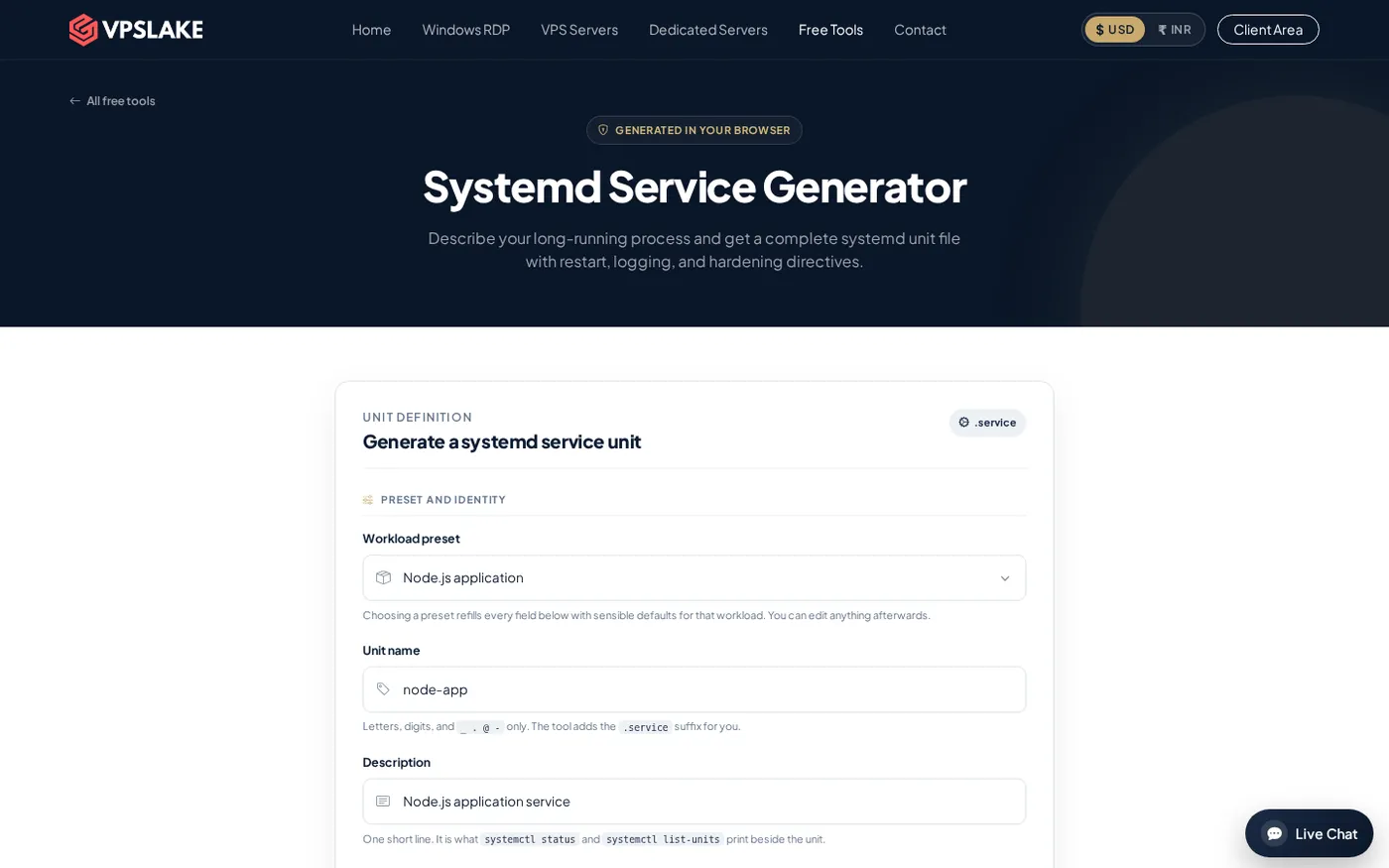
VPSLake also provides a systemd service generator if you want help assembling the unit file.
Step 4: Enable, start, and verify the service
Why: writing a unit file does not make it active until systemd reloads the file and the service is enabled and started.
Run:
sudo systemctl daemon-reload
sudo systemctl enable --now mybot.service
sudo systemctl status mybot.service
A healthy service normally shows Active: active (running). The enable part registers the service for future boots, while --now starts it immediately.
Follow the application output with:
sudo journalctl -u mybot.service -fPress Ctrl+C to leave the log view; it does not stop the service. To see recent entries without following the stream, use:
sudo journalctl -u mybot.service --since "1 hour ago"To deploy a code change, copy the new file, then restart the service and check its status again:
sudo systemctl restart mybot.service
sudo systemctl status mybot.service
Success means the process is active after you disconnect from SSH and returns to the running state after a normal VPS reboot.
Step 5: Choose screen or cron for the right job
Why: not every Python task needs the same kind of process manager.
Use screen for an interactive test, a one-off migration, or a script you want to watch manually:
screen -S myscript
/opt/mybot/.venv/bin/python -u /opt/mybot/run.py
Detach with Ctrl+A, then D. Reconnect later with:
screen -r myscriptThis keeps the process attached to a persistent terminal session, but it is not a complete boot-and-restart policy. Use the systemd unit for a service you expect to run unattended.
Use cron when the script should run at intervals and exit, rather than stay in memory forever. Edit the service account’s crontab with sudo -u mybot crontab -e and add a schedule such as:
*/5 * * * * /opt/mybot/.venv/bin/python -u /opt/mybot/job.py >> /opt/mybot/cron.log 2>&1Do not run a continuously looping script from cron every five minutes unless the script is designed to exit. Otherwise, each invocation can create another copy of the worker.
Logs, restarts, and safe operation
The Restart=on-failure policy is useful when the process exits with an error. It does not repair a bug that makes the script crash repeatedly, and it does not tell you whether an external API, database, or input source is healthy. Check the journal after a restart:
sudo systemctl show mybot.service -p ActiveState -p SubState -p NRestarts
sudo journalctl -u mybot.service -n 100 --no-pager
Keep logs bounded. If your script writes its own log file, use Python’s logging handlers or a rotation policy instead of appending forever to one file. Put secrets in a root-readable environment file or another protected secret store, set restrictive permissions, and avoid printing tokens in exception traces.
Keep the process in the foreground. A systemd service supervises the command in ExecStart; do not add another &, nohup, or an internal daemonizer to the same command.
Troubleshooting a Python service
status shows failed
Run the exact interpreter and script as the service user. Common causes are a missing package, a wrong path, a missing environment variable, or a file that mybot cannot read. The journal usually shows the first useful traceback:
sudo journalctl -u mybot.service -b --no-pagerThe service starts and stops immediately
That may be correct if the Python program finishes successfully. A 24/7 worker needs a loop, listener, queue consumer, or other long-running behavior. For a script that should run once, use cron or a systemd timer instead of forcing it to stay alive.
The script works in SSH but not in systemd
SSH provides your shell’s PATH, home directory, activated virtual environment, and sometimes environment variables that systemd does not provide. Use absolute paths, set WorkingDirectory, call /opt/mybot/.venv/bin/python directly, and declare required environment variables in the unit or a protected environment file.
It restarts repeatedly
Inspect the most recent traceback, then stop the loop while fixing the cause:
sudo systemctl stop mybot.service
sudo journalctl -u mybot.service -n 100 --no-pager
If the script depends on a remote API, add sensible timeouts and exception handling in the application. A restart policy is a recovery mechanism, not a replacement for handling failed requests.
FAQ
Can I run a Python script 24/7 without a VPS?
You can use a home computer, a free hosting tier, or another server, but each has different sleep, quota, reboot, and background-process rules. A VPS gives you a persistent machine and root access, so you control the process manager and its startup behavior.
Is 1 GB RAM enough for a Python script?
It can be enough for one small worker or bot with modest dependencies. Choose 2 GB when the script uses heavier libraries, runs several workers, or shares the VPS with a database, web server, or scheduler; measure memory after deployment instead of guessing from source-code size.
Should I use screen, nohup, or systemd?
Use screen or nohup for a quick test or temporary process. Use systemd for an unattended service because it can start the program at boot, expose status and logs, and restart it after an unexpected failure.
Does systemd run the script after a VPS reboot?
Yes, when the unit is enabled with sudo systemctl enable mybot.service and its dependencies and paths are valid. Test with systemctl status after a planned reboot, then review journalctl for the service’s startup messages.
What is the simplest VPS for a Python bot?
Start with a Buffalo Linux VPS 1 GB if the bot is small and runs alone. Move to the 2 GB plan for a Telegram or Discord bot with more packages or concurrent work, and choose 4 GB when you also need Docker, a database, or several services.